
iWin Theme For Windows 10
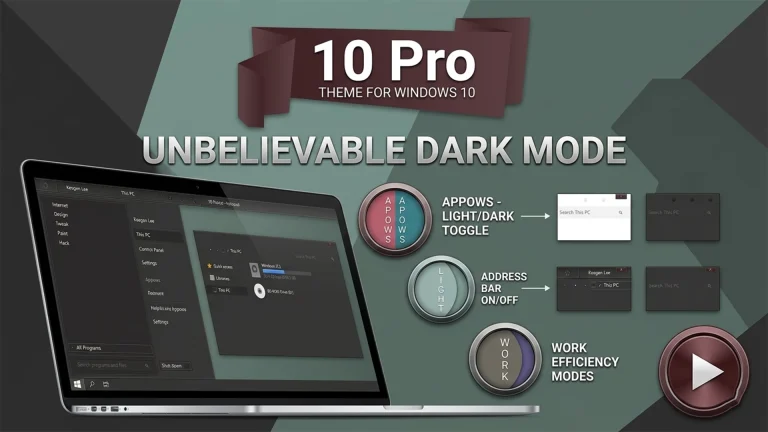
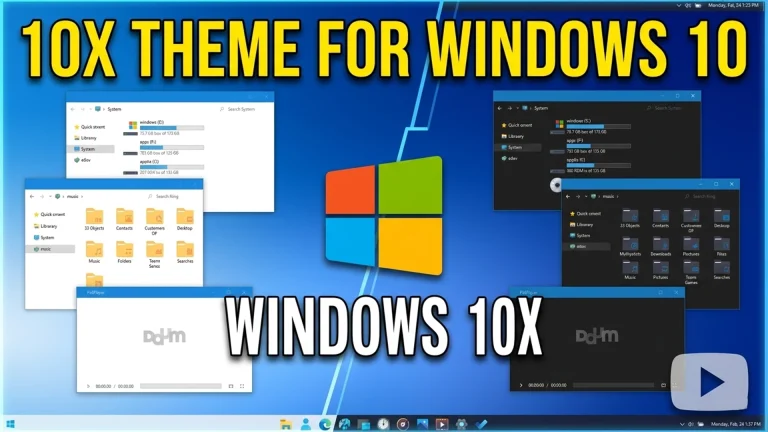
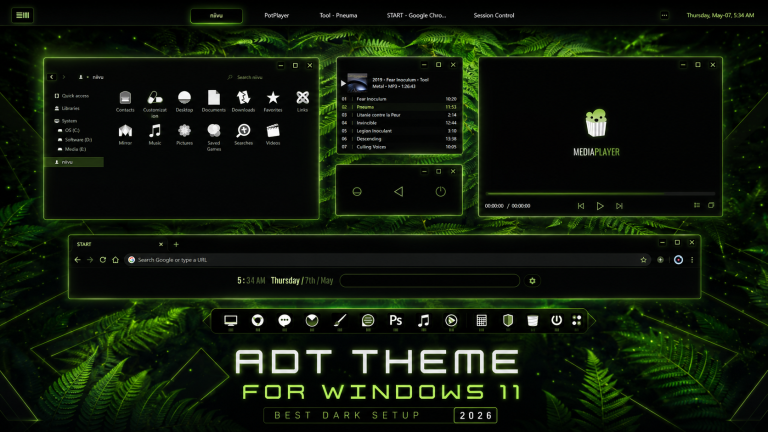
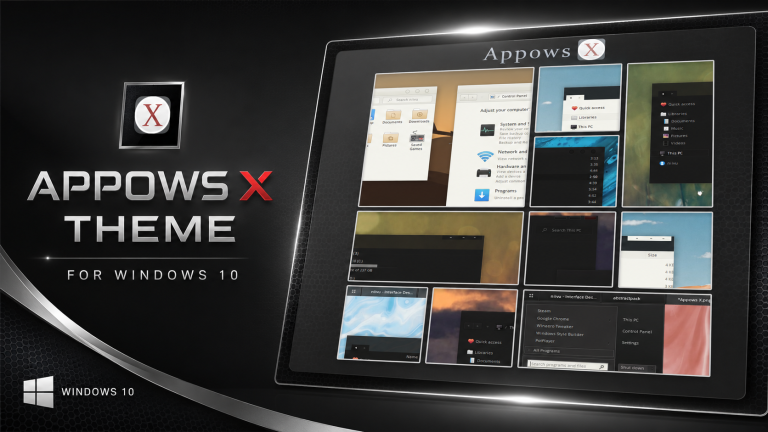
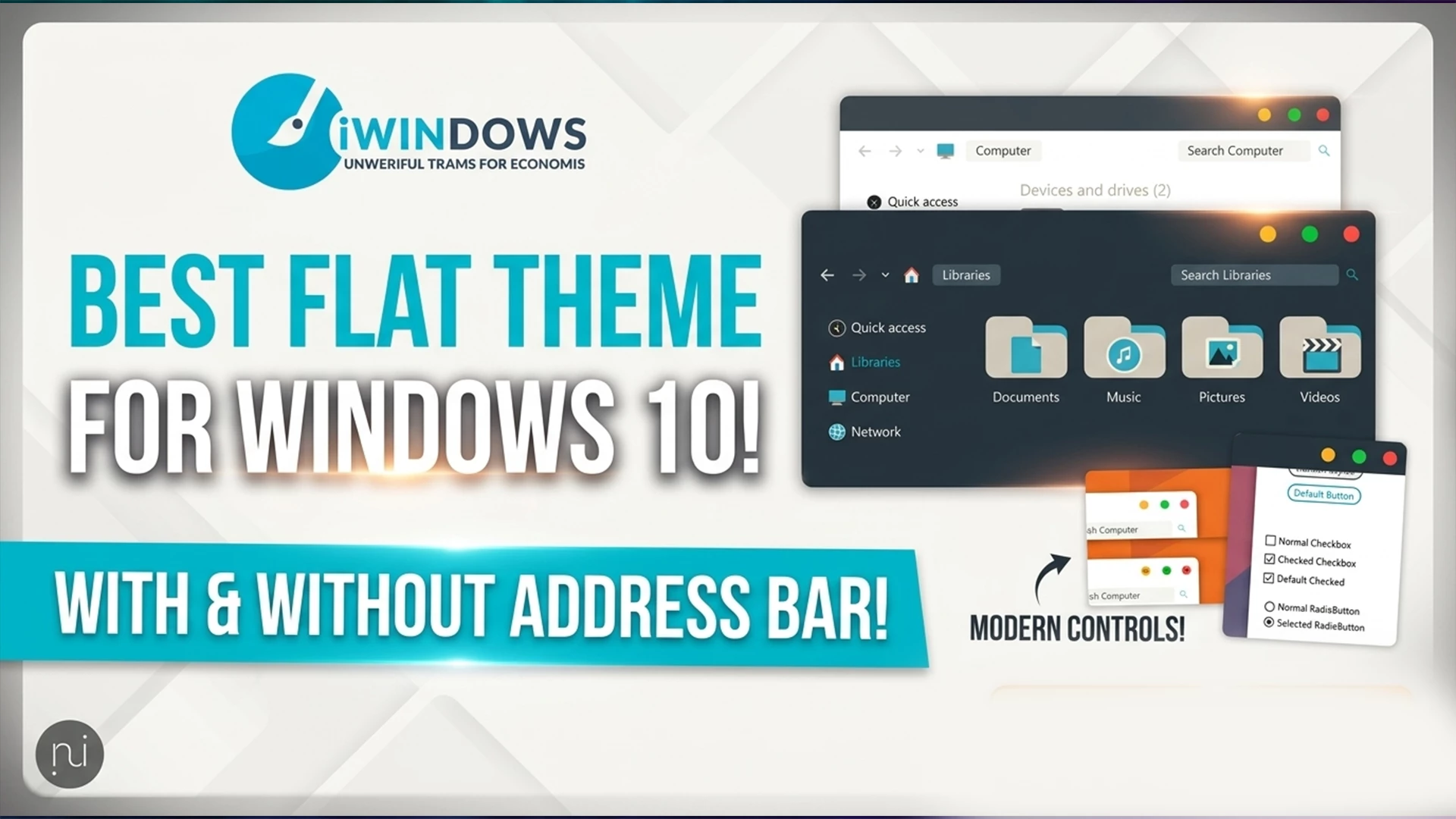
iWin Theme for Windows 10 is a clean, stylish, and modern desktop customization theme designed for users who want to give their Windows 10 interface a more elegant and premium appearance. This theme focuses on simplicity, smooth design, soft visual elements, and a polished user interface that makes the desktop look more professional and attractive.
If you are tired of the default Windows 10 look and want something more refined, the iWin Theme can be a great choice. It brings a minimal desktop style with a smooth layout, clean taskbar appearance, improved window borders, and a modern visual experience. The overall design is slightly inspired by premium operating system aesthetics while still keeping the familiar Windows 10 usability.
About iWin Theme For Windows 10
The iWin Theme For Windows 10 is created for users who prefer a clean and organized desktop environment. It gives Windows 10 a fresh look by redesigning several visual parts of the system interface. The theme improves the appearance of the taskbar, start menu, window frame, system UI elements, and desktop style. As a result, your PC feels more modern and visually balanced.
The main purpose of this iWin Theme For Windows 10 is to make Windows 10 look simple, elegant, and comfortable for daily use. It does not use unnecessary heavy effects or confusing design elements. Instead, it focuses on a smooth and minimal interface that is easy to use for work, study, browsing, designing, and entertainment.
Why Choose iWin Theme?
There are many Windows 10 themes available online, but iWin Theme stands out because of its clean design language. It is suitable for users who want a premium desktop look without making the interface too complex. The theme uses soft colors, smooth UI elements, and a balanced layout to create a comfortable desktop experience.
This iWin Theme For Windows 10 is also a good option for users who create desktop customization videos, screenshots, tutorial content, or personal workspace setups. Its minimal appearance makes the desktop look neat and professional, which is useful for both personal and creative purposes.
Main Features Of iWin Theme
- Clean and modern Windows 10 visual style
- Minimal and elegant desktop appearance
- Smooth taskbar and window design
- Soft color combination for better readability
- Premium-looking user interface
- Simple layout with less visual clutter
- Lightweight theme files
- Suitable for daily desktop customization
- Compatible with popular Windows customization tools
Desktop Look And Visual Experience
After applying the iWin Theme, your Windows 10 desktop will look cleaner and more refined. The theme gives a smooth and modern appearance to the interface while keeping everything easy to understand. The taskbar looks more polished, windows appear more stylish, and the overall desktop feels more organized.
The theme is especially useful for users who prefer a distraction-free workspace. A clean desktop can help improve focus and make regular computer use more enjoyable. Whether you are using your PC for office work, online classes, graphic design, video editing, or general browsing, iWin Theme can make the experience visually better.
Compatibility
- Windows 10
- Download & Install windhawk.
- install & Open Windows 11 Settings Styler
- Go to the Advanced tab
- Copy the content below and paste it into the text box and click “Save”.
- For more details, visit this GitHub guide
- For more Windhawk Styler, visit Check My Theme Category
iWin Theme is mainly designed for Windows 10. Before installing any third-party Windows theme, make sure your Windows version supports customization properly. Some third-party themes may require additional tools to apply visual styles correctly.
What Is Included In This Theme Pack?
- Windows 10 Theme Files
- Visual Style Resources
- Basic Theme Customization Files
- Installation Instructions if included in the ZIP file
Recommended Customization Tools
To get the best result from iWin Theme, you may need some Windows customization tools. These tools help apply third-party themes, modify the start menu, improve the taskbar, add widgets, and customize the overall desktop appearance.
- UltraUXThemePatcher: Helps Windows apply third-party visual themes.
- StartAllBack: Allows taskbar and start menu customization.
- Windhawk: Provides advanced Windows UI modification options.
- Rainmeter: Adds desktop widgets, clocks, system monitors, and visualizers.
These tools are optional and depend on your customization style. Always download tools from their official websites and follow the instructions carefully to avoid system issues.
How To Install iWin Theme On Windows 10
- Download the iWin Theme ZIP file from the download button below.
- Extract the ZIP file using 7-Zip, WinRAR, or Windows built-in extractor.
- Open the extracted folder and check if there is any readme or instruction file.
- Create a system restore point before applying any third-party theme.
- Install the required theme patcher or customization tool if needed.
- Copy the theme files to the correct Windows themes folder.
- Open Windows Personalization settings and apply the theme.
- Restart your PC if the theme does not apply correctly at first.
Important Safety Note
Before applying any custom Windows theme, it is strongly recommended to create a system restore point. Third-party themes can change the visual style of Windows, and some tools may modify system appearance files. A restore point helps you return to the previous state if anything does not work properly.
Also, avoid downloading extra system files from unknown sources. Only use trusted customization tools and always read the instructions carefully before making changes to your Windows setup.
Who Should Use This Theme?
iWin Theme is perfect for users who like a clean, modern, and professional desktop look. It is suitable for students, office users, designers, content creators, bloggers, and Windows customization lovers. If you prefer a minimal interface with smooth visual elements, this theme can be a good match for your setup.
This theme is also useful for users who want to make their Windows 10 desktop look more premium without installing a completely different operating system. It keeps the Windows experience familiar while improving the overall appearance.
Performance And Usability
The iWin Theme is lightweight and designed to run smoothly on Windows 10. Since it mainly changes the visual appearance of the system, it should not heavily affect performance. However, actual performance can depend on your PC specifications and the number of extra customization tools you use.
For better performance, avoid using too many heavy Rainmeter skins, animated wallpapers, or unnecessary background effects at the same time. A clean setup will give you the best balance between beauty and speed.
Download iWin Theme For Windows 10
You can download the iWin Theme files from the button below. After downloading, extract the ZIP file and follow the installation steps carefully. Make sure you understand the process before applying the theme to your main Windows system.
Frequently Asked Questions
Is iWin Theme free to use?
The theme files are provided for desktop customization purposes. Please check the included files or author notes for license, usage rights, and redistribution rules.
Does iWin Theme work on Windows 11?
This post is mainly for Windows 10. The theme may not work properly on Windows 11 unless a separate compatible version is provided by the theme developer.
Do I need UltraUXThemePatcher?
Most third-party Windows themes require a patcher or customization tool to apply correctly. If the theme does not apply from Windows settings, you may need a trusted theme patcher.
Will this theme slow down my computer?
The iWin Theme itself is lightweight. However, performance may be affected if you use multiple heavy widgets, animated effects, or extra customization tools at the same time.
Can I remove the theme later?
Yes, you can switch back to the default Windows theme from Personalization settings. If you used a patching tool, follow the tool’s uninstall or restore instructions carefully.
Final Words
iWin Theme for Windows 10 is a great option for users who want a clean, stylish, and premium-looking desktop setup. Its minimal design, smooth interface, and polished visual style make Windows 10 feel more modern and attractive. Whether you are customizing your personal PC or creating a professional desktop setup, this theme can help you achieve a fresh and elegant look.
Before installing the theme, always create a system restore point and follow the instructions carefully. This will help you enjoy Windows customization safely and avoid unnecessary problems.