

Amazing Glass Start Menu Style for Windows 11
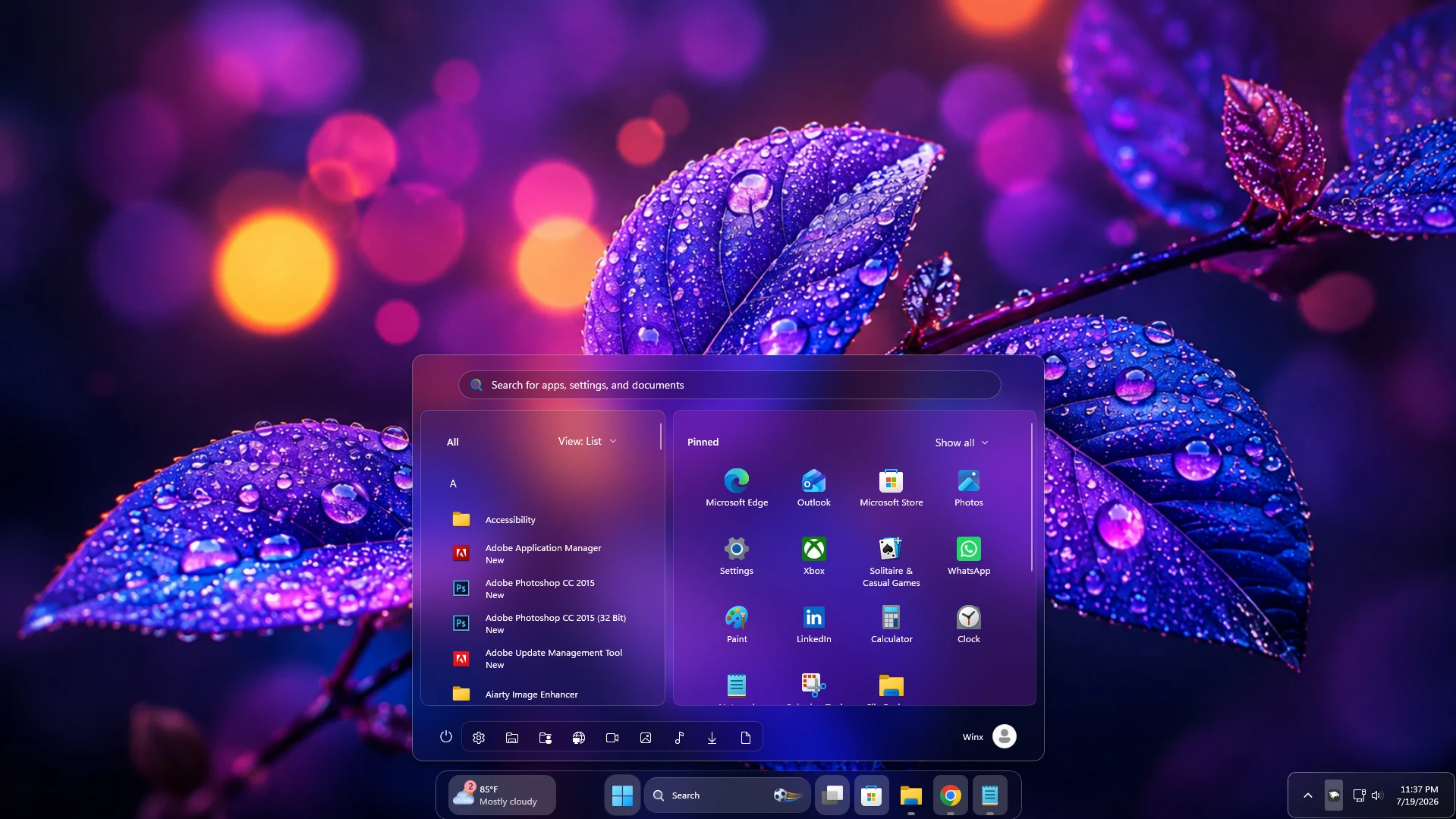
Amazing Glass Start Menu Style is a modern Windhawk customization preset designed to give the Windows 11 Start menu a transparent, blurred, and premium glass-like appearance. It refreshes the default Start menu with cleaner panels, smooth visual effects, and a more stylish desktop experience.
This Start menu style is ideal for users who enjoy customizing Windows 11 with transparent taskbars, glass interface themes, modern icon packs, Rainmeter skins, custom wallpapers, and other Windhawk modifications.
What Is Amazing Glass Start Menu Style?
Amazing Glass Start Menu Style is a visual preset created for a compatible Windhawk Start Menu Styler mod. It changes the appearance of the Start menu interface without replacing the original Windows Start menu or modifying essential system functions.
The style may apply transparent backgrounds, soft blur effects, rounded sections, cleaner spacing, improved navigation areas, and refined app panels. These visual changes help the Start menu feel more modern while keeping pinned apps, recommended items, search options, and power controls easy to access.
The final appearance can vary depending on your Windows 11 version, wallpaper, system theme, transparency settings, display scaling, and installed Windhawk mod version.
Modern Glass Design
The main highlight of this style is its smooth frosted-glass effect. The Start menu background allows part of the desktop wallpaper to appear through the interface while maintaining enough blur to keep text, icons, and buttons visible.
The combination of transparency, subtle depth, rounded panels, and balanced spacing creates a clean and premium appearance. It works well for both minimal desktop setups and more colorful Windows customization themes.
Best Wallpaper and Theme Combinations
Amazing Glass Start Menu Style looks especially attractive with dark, abstract, gradient, landscape, neon, or colorful wallpapers. Wallpapers with strong contrast can make the glass effect more noticeable while maintaining good readability.
You can combine this style with a transparent taskbar, matching Settings Styler preset, custom desktop icons, modern cursor themes, Rainmeter widgets, and a coordinated Windows color scheme.
For the best result, choose a wallpaper and accent color that allow Start menu text and icons to remain clear. Avoid backgrounds that are excessively bright or visually crowded behind the Start menu area.
Compatibility Information
This style is mainly designed for Windows 11 and requires Windhawk with a compatible Start Menu Styler mod. Compatibility may change after major Windows updates because Microsoft can modify the Start menu interface and its internal elements.
Before applying the style, check your Windows build, Windhawk version, and Start Menu Styler mod compatibility. Review the mod description, update notes, installation instructions, and available user feedback.
Installation and Safety Advice
Install Windhawk and related mods only from trusted or official sources. Avoid using unknown configuration files, scripts, or customization code without checking their purpose and source.
Save a backup copy of your existing Start Menu Styler configuration before replacing or editing any settings. A backup makes it easier to restore your previous Start menu design if the new style does not display correctly.
If you notice missing icons, unreadable text, broken buttons, unusual spacing, or Start menu glitches, disable the style and restore the default configuration. Avoid running multiple Start menu styles simultaneously unless they are designed to work together.
Why Use Amazing Glass Start Menu Style?
Amazing Glass Start Menu Style is a good choice for users who want to modernize the Windows 11 Start menu without replacing its original features. It adds a noticeable visual upgrade while keeping the familiar Start menu structure available for everyday use.
The glass-inspired interface can make your desktop setup feel more complete, especially when it is paired with other transparent, blurred, or minimal Windows 11 customization elements.
- Modern glass-style Windows 11 Start menu appearance
- Soft transparency and background blur effects
- Designed for Windhawk Start Menu Styler customization
- Clean pinned application and navigation sections
- Rounded corners and refined interface panels
- Improved spacing for a more organized layout
- Works well with dark and colorful wallpapers
- Matches transparent taskbars and modern desktop themes
- Preserves the familiar Windows 11 Start menu functionality
- Suitable for beginner and advanced desktop customization
- Download and install Windhawk
- Open Windhawk and install the Windows 11 Start Menu Styler mod
- Go to the Advanced tab
- Paste the provided configuration code into the “Mod settings” box
- Click Save to apply the style
- For more details, visit this GitHub guide
- Windahwk Style more Windahwk Style
{ "Theme": " glass Start Menu Style by WinX Customization - Search Enabled", "disableNewStartMenuLayout": "newLayoutSideBySide", "styleConstants[0]": "PurpleGlass=<AcrylicBrush TintColor=\"{ThemeResource CardStrokeColorDefaultSolid}\" FallbackColor=\"{ThemeResource CardStrokeColorDefaultSolid}\" TintOpacity=\"0\" TintLuminosityOpacity=\".05\" Opacity=\"1\"/>", "styleConstants[1]": "DeepPanel=<AcrylicBrush TintColor=\"{ThemeResource CardStrokeColorDefaultSolid}\" FallbackColor=\"{ThemeResource CardStrokeColorDefaultSolid}\" TintOpacity=\"0\" TintLuminosityOpacity=\".05\" Opacity=\"1\"/>", "styleConstants[2]": "SoftPanel=<WindhawkBlur BlurAmount=\"20\" TintColor=\"#6E7D2CB6\"/>", "styleConstants[3]": "HoverGlass=<WindhawkBlur BlurAmount=\"18\" TintColor=\"#26FFFFFF\"/>", "styleConstants[4]": "WhiteStroke=<SolidColorBrush Color=\"#55FFFFFF\"/>", "styleConstants[5]": "SoftStroke=<SolidColorBrush Color=\"#33FFFFFF\"/>", "styleConstants[6]": "WhiteText=<SolidColorBrush Color=\"#FFFFFFFF\"/>", "styleConstants[7]": "SearchGlass=<WindhawkBlur BlurAmount=\"18\" TintColor=\"#35000000\"/>", "controlStyles[0].target": "Grid#FrameRoot", "controlStyles[0].styles[0]": "MaxHeight=560", "controlStyles[0].styles[1]": "MinWidth=760", "controlStyles[0].styles[2]": "MaxWidth=860", "controlStyles[1].target": "Border#StartDropShadow", "controlStyles[1].styles[0]": "CornerRadius=14", "controlStyles[2].target": "Border#AcrylicBorder", "controlStyles[2].styles[0]": "Background:=$PurpleGlass", "controlStyles[2].styles[1]": "BorderBrush:=$WhiteStroke", "controlStyles[2].styles[2]": "BorderThickness=1", "controlStyles[2].styles[3]": "CornerRadius=14", "controlStyles[3].target": "Border#AcrylicOverlay", "controlStyles[3].styles[0]": "Visibility=Collapsed", "controlStyles[4].target": "Border#LayerBorder", "controlStyles[4].styles[0]": "Background:=<AcrylicBrush TintColor=\"{ThemeResource CardStrokeColorDefaultSolid}\" FallbackColor=\"{ThemeResource CardStrokeColorDefaultSolid}\" TintOpacity=\"0\" TintLuminosityOpacity=\".05\" Opacity=\"1\"/>", "controlStyles[4].styles[1]": "CornerRadius=14", "controlStyles[5].target": "Border#BorderElement", "controlStyles[5].styles[0]": "Background:=$DeepPanel", "controlStyles[5].styles[1]": "BorderBrush:=$SoftStroke", "controlStyles[5].styles[2]": "BorderThickness=1", "controlStyles[5].styles[3]": "CornerRadius=10", "controlStyles[6].target": "TextBlock", "controlStyles[6].styles[0]": "Foreground:=$WhiteText", "controlStyles[7].target": "StartDocked.SearchBoxToggleButton", "controlStyles[7].styles[0]": "Visibility=Visible", "controlStyles[7].styles[1]": "Height=38", "controlStyles[7].styles[2]": "Margin=28,14,28,0", "controlStyles[7].styles[3]": "CornerRadius=20", "controlStyles[7].styles[4]": "Canvas.ZIndex=10", "controlStyles[8].target": "StartDocked.SearchBoxToggleButton#StartMenuSearchBox", "controlStyles[8].styles[0]": "Visibility=Visible", "controlStyles[8].styles[1]": "Height=38", "controlStyles[8].styles[2]": "Margin=28,14,28,0", "controlStyles[8].styles[3]": "CornerRadius=20", "controlStyles[8].styles[4]": "Canvas.ZIndex=10", "controlStyles[9].target": "StartMenu.SearchBoxToggleButton", "controlStyles[9].styles[0]": "Visibility=Visible", "controlStyles[9].styles[1]": "Height=38", "controlStyles[9].styles[2]": "Margin=28,14,28,0", "controlStyles[9].styles[3]": "CornerRadius=20", "controlStyles[9].styles[4]": "Canvas.ZIndex=10", "controlStyles[10].target": "StartDocked.SearchBoxToggleButton > Grid > Border", "controlStyles[10].styles[0]": "Background:=$SearchGlass", "controlStyles[10].styles[1]": "BorderBrush:=$SoftStroke", "controlStyles[10].styles[2]": "BorderThickness=1", "controlStyles[10].styles[3]": "CornerRadius=20", "controlStyles[11].target": "StartMenu.SearchBoxToggleButton > Grid > Border", "controlStyles[11].styles[0]": "Background:=$SearchGlass", "controlStyles[11].styles[1]": "BorderBrush:=$SoftStroke", "controlStyles[11].styles[2]": "BorderThickness=1", "controlStyles[11].styles[3]": "CornerRadius=20", "controlStyles[12].target": "Grid#SideBySidePinnedWrapper", "controlStyles[12].styles[0]": "ColumnDefinitions:=<ColumnDefinitionCollection><ColumnDefinition Width=\"330*\"/><ColumnDefinition Width=\"500*\"/></ColumnDefinitionCollection>", "controlStyles[12].styles[1]": "Margin=10,8,10,8", "controlStyles[13].target": "GridView#AllAppsGrid > Border > Grid#SideBySidePinnedWrapper > ScrollViewer#ScrollViewer", "controlStyles[13].styles[0]": "Grid.Column=0", "controlStyles[13].styles[1]": "Margin=0,0,0,0", "controlStyles[13].styles[2]": "Background:=$DeepPanel", "controlStyles[13].styles[3]": "BorderBrush:=$SoftStroke", "controlStyles[13].styles[4]": "BorderThickness=1", "controlStyles[13].styles[5]": "CornerRadius=10", "controlStyles[14].target": "ScrollViewer#SideBySidePinnedScrollViewer", "controlStyles[14].styles[0]": "Grid.Column=1", "controlStyles[14].styles[1]": "Margin=10,0,0,0", "controlStyles[14].styles[2]": "Background:=$PurpleGlass", "controlStyles[14].styles[3]": "BorderBrush:=<SolidColorBrush Color=\"#22FFFFFF\"/>", "controlStyles[14].styles[4]": "BorderThickness=1", "controlStyles[14].styles[5]": "CornerRadius=10", "controlStyles[15].target": "Grid#SideBySidePinnedWrapper > ScrollViewer > Border#Root > Grid > ScrollContentPresenter > ItemsPresenter > ItemsWrapGrid", "controlStyles[15].styles[0]": "Margin=26,10,26,14", "controlStyles[16].target": "Grid#AllListHeading > TextBlock#AllListHeadingText", "controlStyles[16].styles[0]": "Margin=34,8,12,8", "controlStyles[16].styles[1]": "FontWeight=SemiBold", "controlStyles[16].styles[2]": "FontSize=13", "controlStyles[17].target": "TextBlock#PinnedListHeaderText", "controlStyles[17].styles[0]": "Margin=18,8,0,12", "controlStyles[17].styles[1]": "FontWeight=SemiBold", "controlStyles[17].styles[2]": "FontSize=13", "controlStyles[18].target": "Grid#NavPanePlaceholder", "controlStyles[18].styles[0]": "Margin=24,0,24,0", "controlStyles[19].target": "StartDocked.NavigationPaneView#UserControl > Grid#RootPanel", "controlStyles[19].styles[0]": "FlowDirection=1", "controlStyles[20].target": "StartDocked.PowerOptionsView#PowerButton", "controlStyles[20].styles[0]": "FlowDirection=0", "controlStyles[21].target": "ItemsStackPanel > ListViewItem", "controlStyles[21].styles[0]": "FlowDirection=0", "controlStyles[22].target": "GridViewItem", "controlStyles[22].styles[0]": "CornerRadius=8", "controlStyles[22].styles[1]": "Margin=2", "controlStyles[23].target": "ListViewItem", "controlStyles[23].styles[0]": "CornerRadius=8", "controlStyles[23].styles[1]": "Margin=2,1,2,1", "controlStyles[24].target": "Border#ContentBorder@CommonStates", "controlStyles[24].styles[0]": "Background@PointerOver:=$HoverGlass", "controlStyles[24].styles[1]": "Background@Pressed:=<WindhawkBlur BlurAmount=\"18\" TintColor=\"#35FFFFFF\"/>", "controlStyles[24].styles[2]": "BorderBrush@PointerOver:=<SolidColorBrush Color=\"#44FFFFFF\"/>", "controlStyles[24].styles[3]": "BorderThickness=1", "controlStyles[24].styles[4]": "CornerRadius=8", "controlStyles[25].target": "Button#ShowAllAppsButton", "controlStyles[25].styles[0]": "Visibility=Collapsed", "controlStyles[26].target": "Button#CloseAllAppsButton", "controlStyles[26].styles[0]": "Visibility=Collapsed", "controlStyles[27].target": "Windows.UI.Xaml.Controls.Grid#TopLevelSuggestionsListHeader", "controlStyles[27].styles[0]": "Visibility=Collapsed", "controlStyles[27].styles[1]": "Height=0", "controlStyles[28].target": "Windows.UI.Xaml.Controls.Grid#NoTopLevelSuggestionsText", "controlStyles[28].styles[0]": "Visibility=Collapsed", "controlStyles[28].styles[1]": "Height=0", "controlStyles[29].target": "Windows.UI.Xaml.Controls.Grid#TopLevelSuggestionsContainer", "controlStyles[29].styles[0]": "Visibility=Collapsed", "controlStyles[29].styles[1]": "Height=0", "controlStyles[30].target": "Windows.UI.Xaml.Controls.Grid#ShowMoreSuggestions", "controlStyles[30].styles[0]": "Visibility=Collapsed", "controlStyles[30].styles[1]": "Height=0", "controlStyles[31].target": "StartMenu.PinnedList", "controlStyles[31].styles[0]": "Height=504", "controlStyles[31].styles[1]": "Margin=0,0,0,0", "controlStyles[32].target": "StartDocked.AppListView#NavigationPanePlacesListView > Windows.UI.Xaml.Controls.Border", "controlStyles[32].styles[0]": "Background:=<WindhawkBlur BlurAmount=\"18\" TintColor=\"#30100025\"/>", "controlStyles[32].styles[1]": "CornerRadius=10", "controlStyles[32].styles[2]": "BorderBrush:=<SolidColorBrush Color=\"#22FFFFFF\"/>", "controlStyles[32].styles[3]": "BorderThickness=1", "controlStyles[33].target": "MenuFlyoutPresenter > Border", "controlStyles[33].styles[0]": "Background:=$PurpleGlass", "controlStyles[33].styles[1]": "BorderBrush:=$WhiteStroke", "controlStyles[33].styles[2]": "BorderThickness=1", "controlStyles[33].styles[3]": "CornerRadius=10"}Amazing Glass Start Menu Style for Windows 11 is a good option for users who want a cleaner and more modern Start menu without replacing the original Windows interface. Its combination of transparency, soft blur, rounded panels, and organized spacing can make the desktop feel more polished.
The style is especially attractive when paired with matching taskbar customization, modern icons, a suitable wallpaper, and a consistent color scheme. It can provide a noticeable visual improvement while keeping pinned applications, search, power controls, and other Start menu features accessible.
Before applying the style, confirm compatibility, save your existing settings, and create a restore point. Careful installation and regular backups will help you enjoy Windows customization while making it easy to return to the default appearance whenever necessary.
FAQs
Do I need Windhawk for this style?
Yes. Amazing Glass Start Menu Style is designed to work with Windhawk and a compatible Start Menu Styler mod. Windhawk must be installed and running for the customization to remain active.
Why is the style not working?
The most common reasons include an outdated mod, an unsupported Windows build, incorrect configuration placement, disabled Windhawk services, or a Windows update that changed the Start menu interface. Update the required tools, check compatibility, and restart Windows Explorer.
Does this style replace the Windows 11 Start menu?
No. It changes the visual appearance of the existing Start menu through Windhawk. The original Start menu and its main functions remain available.
Can I restore the default Start menu?
Yes. Disable the Start Menu Styler mod, remove the custom configuration, or restore your saved backup settings. Restart Windows Explorer if the default appearance does not return immediately.
Will the style continue working after a Windows update?
Minor updates may not cause any problems, but major Windows updates can change Start menu elements. Check the Windhawk mod page for compatibility information after updating Windows.
Can I use this style with a transparent taskbar?
Yes. A transparent taskbar can complement the glass Start menu and create a more consistent Windows 11 desktop appearance.
Can I use multiple Start menu styles together?
It is not recommended. Different style configurations may conflict with each other and cause broken layouts, missing buttons, or unreadable text.
Does the style affect computer performance?
The performance impact is generally small on supported systems, but results can vary depending on hardware, installed mods, transparency effects, and the number of active customization tools.