
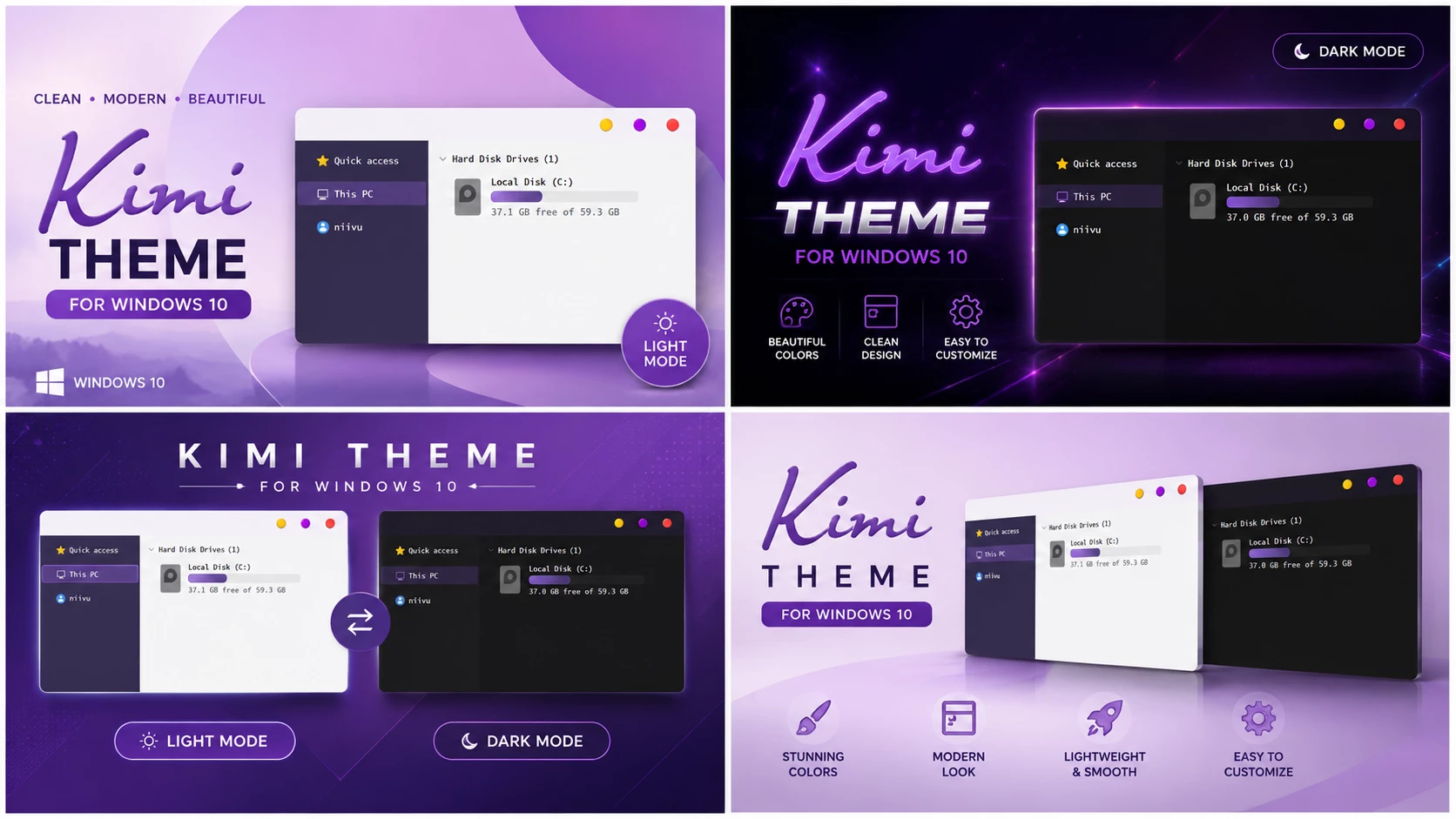
Kimi Theme For Windows 10
The Kimi Theme For Windows 10 is a soft, clean, and modern Windows customization theme designed for users who prefer a calm and minimal desktop setup. If you want your Windows 10 interface to look smoother, lighter, and more elegant, this theme can give your desktop a fresh and comfortable appearance.
This Kimi Theme For Windows 10 focuses on a simple and aesthetic visual style. It uses gentle colors, clean UI elements, and a balanced layout to create a relaxing workspace. The Kimi Theme is suitable for users who want a beautiful desktop environment for daily work, study, browsing, creative tasks, and personal customization.
Theme Overview
The main purpose of the Kimi Theme is to improve the default Windows 10 appearance with a softer and more polished visual style. It gives the interface a minimal and organized look while keeping the familiar Windows experience easy to use. This makes the theme suitable for users who want a clean desktop without too much visual clutter.
Kimi Theme For Windows 10 is especially useful for users who enjoy light, soft, and aesthetic desktop setups. The design can make Windows 10 feel more modern and comfortable during long usage sessions. Its simple appearance also makes it a good option for productivity, online learning, office work, and creative projects.
Key Features of Kimi Theme
- Soft and modern Windows 10 visual style.
- Clean minimal interface for a calm desktop experience.
- Gentle color palette suitable for long usage sessions.
- Organized UI layout with reduced visual clutter.
- Lightweight theme package for personal customization.
- Good choice for users who prefer aesthetic and simple desktop setups.
Compatibility
This theme is mainly created for Windows 10. Before applying the Kimi Theme, make sure your Windows version and build number are compatible with the theme files. Some third-party Windows themes may not work properly after major Windows updates, so checking compatibility before installation is always recommended.
- Windows 10
- Download & Install windhawk.
- install & Open Windows 11 Settings Styler
- Go to the Advanced tab
- Copy the content below and paste it into the text box and click “Save”.
- For more details, visit this GitHub guide
- For more Windhawk Styler, visit Check My Theme Category
What Is Included in This Theme?
The download package includes the main theme files required to apply the Kimi visual style on Windows 10. The package is lightweight and simple, making it easy to download and use for personal desktop customization.
- Windows 10 Theme Files
Before You Install
Before installing any third-party Windows theme, you should follow some basic safety steps. Custom Windows themes may require additional tools or theme patching depending on your Windows setup. If you are new to Windows customization, read the instructions carefully before applying the theme.
- Create a system restore point before applying the theme.
- Check your Windows 10 version and build number.
- Extract the downloaded ZIP file before using the theme files.
- Scan the downloaded file with antivirus software.
- Do not replace or modify system files without proper knowledge.
- Use only trusted customization tools that support your Windows version.
How to Apply the Theme
The installation process may vary depending on your Windows version and customization setup. In general, you should download the ZIP file, extract it, check the included files, and apply the theme using the recommended Windows theme method or a supported customization tool.
- Download the Kimi Theme ZIP file from the download button below.
- Extract the ZIP file using WinRAR, 7-Zip, or Windows built-in extractor.
- Open the extracted folder and check the available theme files.
- Create a system restore point before applying the theme.
- Apply the theme using the proper Windows theme method or supported customization tool.
- Restart your computer if the theme does not apply correctly at first.
Why Choose Kimi Theme?
The Kimi Theme is a good choice for users who want a soft and elegant Windows 10 desktop. Many custom themes use strong colors, dark contrast, or heavy visual effects, but Kimi keeps the design calm and simple. This makes it suitable for users who want a peaceful and modern workspace.
The clean layout helps reduce distractions, while the soft color style makes the interface more comfortable to look at. If you enjoy minimal Windows customization and want your desktop to feel fresh, aesthetic, and organized, Kimi can be a useful addition to your Windows 10 theme collection.
Performance and Usability
The Kimi Theme mainly focuses on visual customization, so it should feel lightweight for normal desktop use. Since it does not depend on heavy animations or complex effects, it can work smoothly on many Windows 10 systems. However, performance and compatibility may vary depending on your device, Windows version, and installed customization tools.
For the best experience, avoid using too many customization tools at the same time. Keep your system updated, follow the installation steps carefully, and always keep a restore point available before making changes to your Windows interface.
Troubleshooting Tips
If the Kimi Theme does not apply correctly, first switch back to the default Windows theme and restart your computer. Then check whether your Windows 10 version supports the theme files. Some themes may require an updated patcher or customization tool after major Windows updates.
- If the theme looks broken, restore the default Windows theme first.
- If UI elements do not change, restart Windows Explorer or reboot your PC.
- If the theme does not work, check whether the required customization tool is installed correctly.
- If the problem continues, remove the theme and restore your previous settings.
- If your system becomes unstable, use the restore point created before installation.
Important Disclaimer
RainXTheme shares Windows customization content for educational and personal customization purposes. The Kimi Theme is a third-party customization resource and is not an official Microsoft product.
Please use all custom themes carefully. RainXTheme is not responsible for system issues, data loss, compatibility problems, or software conflicts caused by incorrect installation, unsupported Windows versions, or misuse of third-party customization files. Always create a restore point before applying any custom Windows theme.
Final Words
The Kimi Theme For Windows 10 is a soft, clean, and aesthetic theme for users who want a calm desktop setup. Its gentle color palette, minimal UI style, and lightweight structure make it suitable for everyday use. If you want your Windows 10 desktop to look more elegant, comfortable, and organized, Kimi Theme can be a great option to try.