
New macOS Dock For Windows 10 & 11 Using My Dock Finder
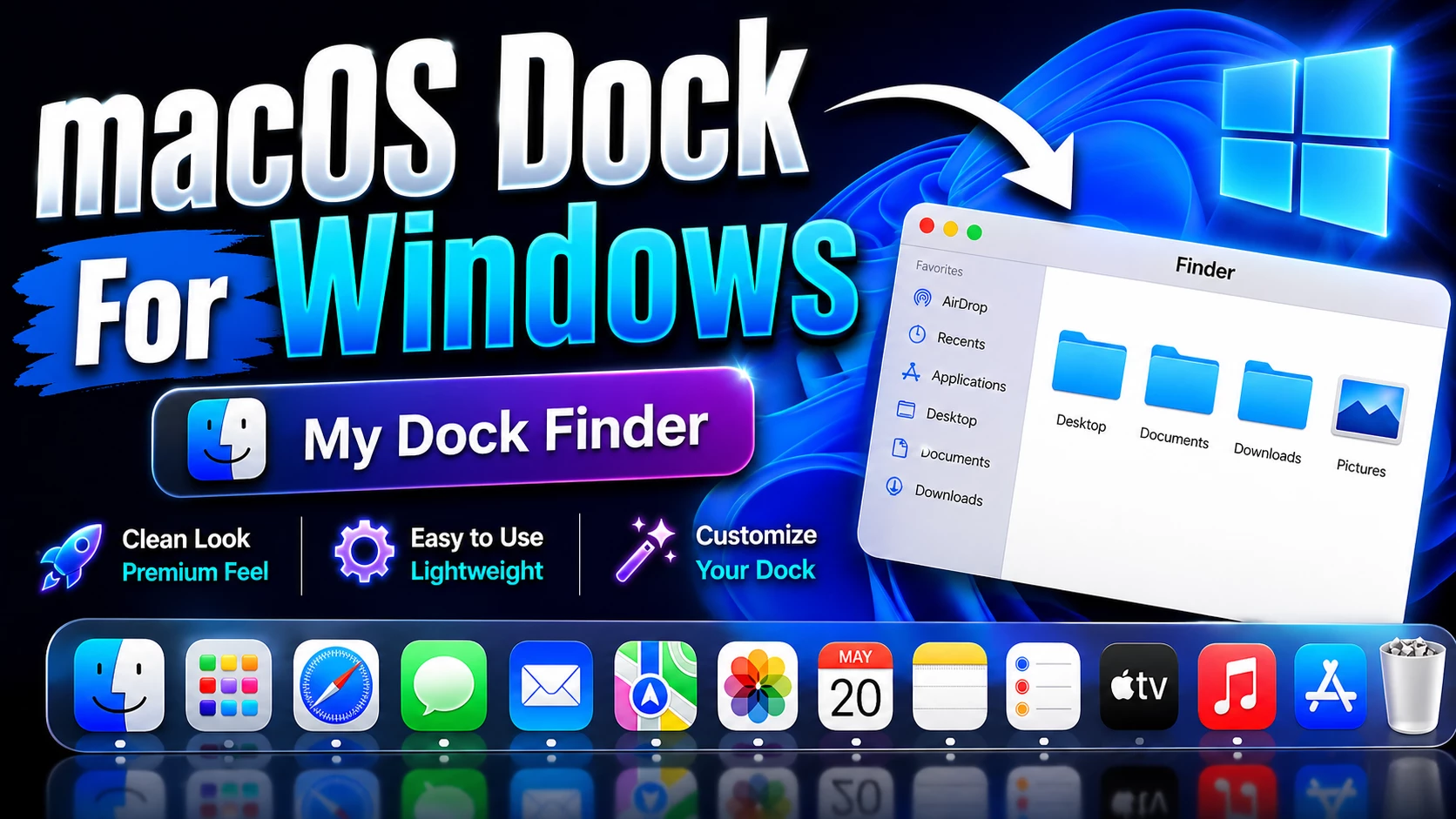
New macOS Dock for Windows 10 and Windows 11 is a stylish desktop customization setup that allows users to bring a clean Apple-inspired dock experience to their Windows PC. Many Windows users love the smooth, minimal, and professional look of macOS, especially the dock, menu bar, blur effects, and organized app launching style. With My Dock Finder, you can create a similar macOS-style desktop experience without leaving the Windows operating system.
My Dock Finder is a popular desktop customization tool that adds a macOS-like dock and menu bar to Windows. It helps make your desktop look more modern, clean, and visually attractive. Whether you are using Windows 10 or Windows 11, this tool can give your setup a premium Apple-inspired appearance with smooth animations, blur effects, app shortcuts, and a more organized workspace.
About My Dock Finder For Windows
My Dock Finder is designed for users who want a macOS-style dock on Windows. Instead of using the default Windows taskbar only, this tool adds a separate dock where you can place your favorite apps, folders, and shortcuts. The dock appears at the bottom of the screen like macOS and gives your desktop a cleaner and more professional look.
The main attraction of My Dock Finder is that it does not only add a simple dock. It also provides a macOS-inspired menu bar, launchpad-style app access, system controls, blur effects, and smooth animations. This makes the desktop feel more complete and visually polished.
Why Use a macOS Dock On Windows?
A macOS-style dock can make your Windows desktop more organized and easier to use. Instead of keeping many icons on the desktop, you can place your important apps on the dock. This keeps your workspace clean and helps you quickly open the programs you use most often.
For users who create desktop customization videos, screenshots, tutorial content, or aesthetic PC setups, a macOS dock can make the desktop look more premium and attractive. It is also useful for people who like minimal desktop layouts and want a smoother app-launching experience.
Main Features Of My Dock Finder
- macOS-style dock for Windows 10 and Windows 11
- Clean and modern Apple-inspired desktop appearance
- Smooth dock animations and hover effects
- macOS-like menu bar support
- Launchpad-style app organization
- Blur and transparency effects for a premium look
- Quick access to frequently used apps and folders
- Customizable dock size, position, icons, and behavior
- Works well with Windows desktop customization themes
Desktop Look And User Experience
After setting up My Dock Finder, your Windows desktop will look cleaner, smoother, and more modern. The dock creates a central place for your favorite apps, while the menu bar gives the desktop a more macOS-inspired feel. This makes the overall interface more organized and visually appealing.
The dock is especially useful for users who want a minimal workspace. You can reduce desktop clutter by removing unnecessary shortcuts from the desktop and keeping only the important apps in the dock. This makes Windows feel more focused and easier to navigate.
Compatibility
- Windows 10
- Windows 11
- Download & Install windhawk.
- install & Open Windows 11 Settings Styler
- Go to the Advanced tab
- Copy the content below and paste it into the text box and click “Save”.
- For more details, visit this GitHub guide
- For more Windhawk Styler, visit Check My Theme Category
My Dock Finder is suitable for Windows 10 and Windows 11 users who want a macOS-style desktop setup. Before installing, make sure your Windows system is updated and your PC has enough available resources for smooth animations and visual effects.
What Is Included In This Package?
- My Dock Finder Files
- macOS-Style Dock Setup
- Menu Bar Customization Support
- Basic Desktop Customization Resources
- Installation Instructions if included in the package
How To Install My Dock Finder On Windows 10 & 11
- Download the My Dock Finder ZIP file from the download button below.
- Extract the ZIP file using 7-Zip, WinRAR, or Windows built-in extractor.
- Open the extracted folder and check for any readme or instruction file.
- Run the My Dock Finder application file.
- Allow required permissions if Windows asks for confirmation.
- Open the settings or preferences menu to customize the dock.
- Adjust dock size, position, icons, blur effect, and animation style.
- For a cleaner look, you can hide the default Windows taskbar from Windows settings.
How To Customize The macOS Dock On Windows
My Dock Finder gives users several customization options. You can adjust the dock position, icon size, animation speed, blur effect, background style, and app shortcuts. This allows you to create a desktop setup that matches your personal style.
- Right-click on the dock area to open preferences or settings.
- Change the dock size according to your screen resolution.
- Add your most-used apps for quick access.
- Remove unnecessary icons to keep the dock clean.
- Enable blur or transparency effects for a premium appearance.
- Use matching wallpapers and icons for a complete macOS-style setup.
Recommended Setup Tips
To get the best macOS-style desktop experience, you can combine My Dock Finder with a clean wallpaper, macOS-style icon pack, Windows theme, and Rainmeter widgets. A matching setup will make your desktop look more complete and professional.
- Use a clean macOS-inspired wallpaper.
- Use matching icons for apps and folders.
- Keep the desktop free from too many shortcuts.
- Use auto-hide taskbar if you want a full dock-style experience.
- Avoid using too many heavy widgets if your PC is low-end.
Performance And Usability
My Dock Finder is designed to provide a smooth desktop customization experience. On most modern PCs, it should run smoothly while adding dock animations and visual effects. However, performance may depend on your system specifications, background apps, animation settings, and the number of extra customization tools you use.
If you notice lag or slow animations, you can reduce animation quality, disable unnecessary effects, or lower the rendering frame rate from the settings. Keeping the setup simple will help maintain better performance, especially on older or mid-range computers.
Important Safety Note
Before installing any desktop customization tool, it is recommended to create a system restore point. Customization tools can change the appearance and behavior of your desktop, so having a restore point helps you safely return to your previous setup if something does not work properly.
You should also download customization tools only from trusted sources. Avoid installing unknown modified files from unsafe websites, and always scan downloaded files with your antivirus before running them.
Who Should Use My Dock Finder?
My Dock Finder is perfect for users who want a macOS-style desktop experience on Windows 10 or Windows 11. It is suitable for students, office users, designers, bloggers, YouTubers, content creators, and desktop customization lovers. If you like clean layouts, smooth animations, and Apple-inspired desktop design, this tool can be a great addition to your setup.
It is also useful for people who want to make their desktop look more attractive in screenshots, tutorials, and customization videos. The dock-style layout can make your Windows desktop look modern, minimal, and professional.
Download My Dock Finder For Windows 10 & 11
You can download the My Dock Finder files from the button below. After downloading, extract the ZIP file and follow the installation steps carefully. Make sure you understand the setup process before applying it to your main Windows system.
Frequently Asked Questions
What is My Dock Finder?
My Dock Finder is a Windows desktop customization tool that adds a macOS-style dock and menu bar to Windows 10 and Windows 11. It helps create an Apple-inspired desktop appearance while keeping Windows functionality.
Does My Dock Finder turn Windows into macOS?
No, it does not change Windows into macOS. It only changes the visual desktop experience by adding a macOS-style dock, menu bar, animations, and customization features.
Does it work on Windows 10 and Windows 11?
Yes, this setup is designed for Windows 10 and Windows 11 users. However, performance and compatibility may depend on your Windows build, system configuration, and customization settings.
Will My Dock Finder slow down my PC?
On most modern PCs, it should run smoothly. However, using high blur effects, heavy animations, animated wallpapers, or many extra widgets may affect performance on low-end systems.
Can I hide the default Windows taskbar?
Yes, you can enable auto-hide taskbar from Windows settings if you want a cleaner macOS-style desktop. This helps prevent overlap between the Windows taskbar and the dock.
Can I remove My Dock Finder later?
Yes, you can close or uninstall the tool later. If you changed many desktop settings, you can manually restore them or use a system restore point if needed.
Final Words
New macOS Dock for Windows 10 and 11 using My Dock Finder is a great way to create a clean, modern, and Apple-inspired desktop setup. It adds a beautiful dock, smooth animations, menu bar styling, and useful customization options that make Windows look more premium and organized.
Whether you are a desktop customization lover, content creator, designer, or general user, My Dock Finder can help you build a stylish Windows setup with a macOS-like experience. Before installing, always create a restore point, use trusted files, and follow the setup instructions carefully for a safe and smooth customization process.