
Best PowerToys Customization Setup For Windows 11
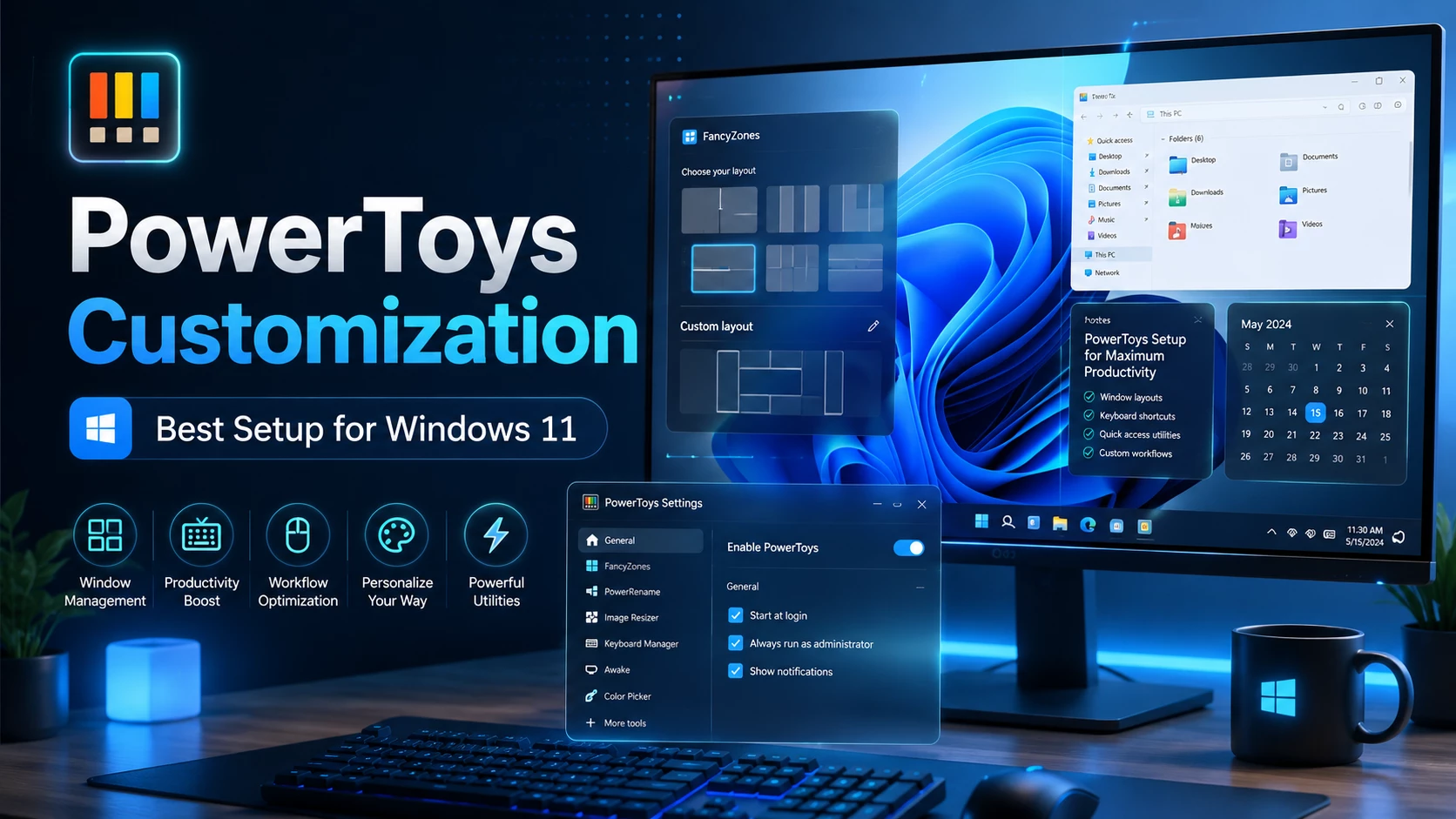
PowerToys Customization Setup for Windows 11 is one of the best ways to improve your desktop experience without using heavy third-party theme packs. Microsoft PowerToys is designed for users who want more control, better productivity, and advanced customization options on Windows. It includes useful tools such as FancyZones, PowerToys Run, Color Picker, Keyboard Manager, Peek, Image Resizer, Light Switch, and more.
If you want to make Windows 11 faster, cleaner, and more useful, PowerToys can be a perfect choice. It does not only change the look of your desktop, but also improves the way you work with windows, files, shortcuts, colors, and apps. This makes it suitable for students, designers, developers, office users, and content creators.
Why Use PowerToys On Windows 11?
Windows 11 already has a modern interface, but PowerToys adds extra features that are not available by default. For example, FancyZones lets you create custom window layouts, PowerToys Run works like a fast app launcher, and Light Switch can automatically change between light and dark mode based on time.
This setup is especially useful for users who want a clean and productive desktop. Instead of installing many separate apps, PowerToys gives you multiple useful tools in one package.
Main Features Of PowerToys Setup
- FancyZones for custom window layouts
- PowerToys Run for fast app launching
- Light Switch for automatic light and dark mode
- Keyboard Manager for key remapping
- Color Picker for designers and creators
- Peek for quick file preview
- Image Resizer for fast image resizing
- Always On Top for pinning important windows
Recommended PowerToys Settings
- Install PowerToys from the official Microsoft Store or GitHub page.
- Enable FancyZones and create a layout based on your monitor size.
- Enable PowerToys Run for faster app and file search.
- Turn on Light Switch if you want automatic dark and light mode.
- Use Keyboard Manager to customize shortcuts.
- Enable Peek for quick preview of images, documents, and files.
- Use Color Picker if you work with design, themes, or UI customization.
Best For Productivity And Customization
PowerToys is not just a visual customization tool. It is also a productivity booster. If you use multiple apps at the same time, FancyZones can help you arrange windows neatly. If you often search for apps or files, PowerToys Run can save time. If you design thumbnails, themes, icons, or websites, Color Picker and Image Resizer can be very useful.
Compatibility
- Windows 10
- Windows 11
Important Safety Note
PowerToys is safer than many random customization tools because it is maintained by Microsoft. However, you should still download it only from official sources. Avoid downloading modified PowerToys installers from unknown websites.
Frequently Asked Questions
Is PowerToys free?
Yes, PowerToys is free to use and available for Windows users through official Microsoft sources.
Does PowerToys slow down Windows?
PowerToys is generally lightweight, but enabling too many tools at once may use extra system resources. For best performance, enable only the tools you actually use.
Is PowerToys good for customization?
Yes, PowerToys is excellent for functional customization. It improves window management, shortcuts, app launching, file preview, and workflow control.
Final Words
PowerToys Customization Setup for Windows 11 is perfect for users who want a cleaner, smarter, and more productive desktop. It improves Windows without making the system unstable or visually overloaded. If you want useful customization instead of only visual changes, PowerToys is one of the best tools to try.