

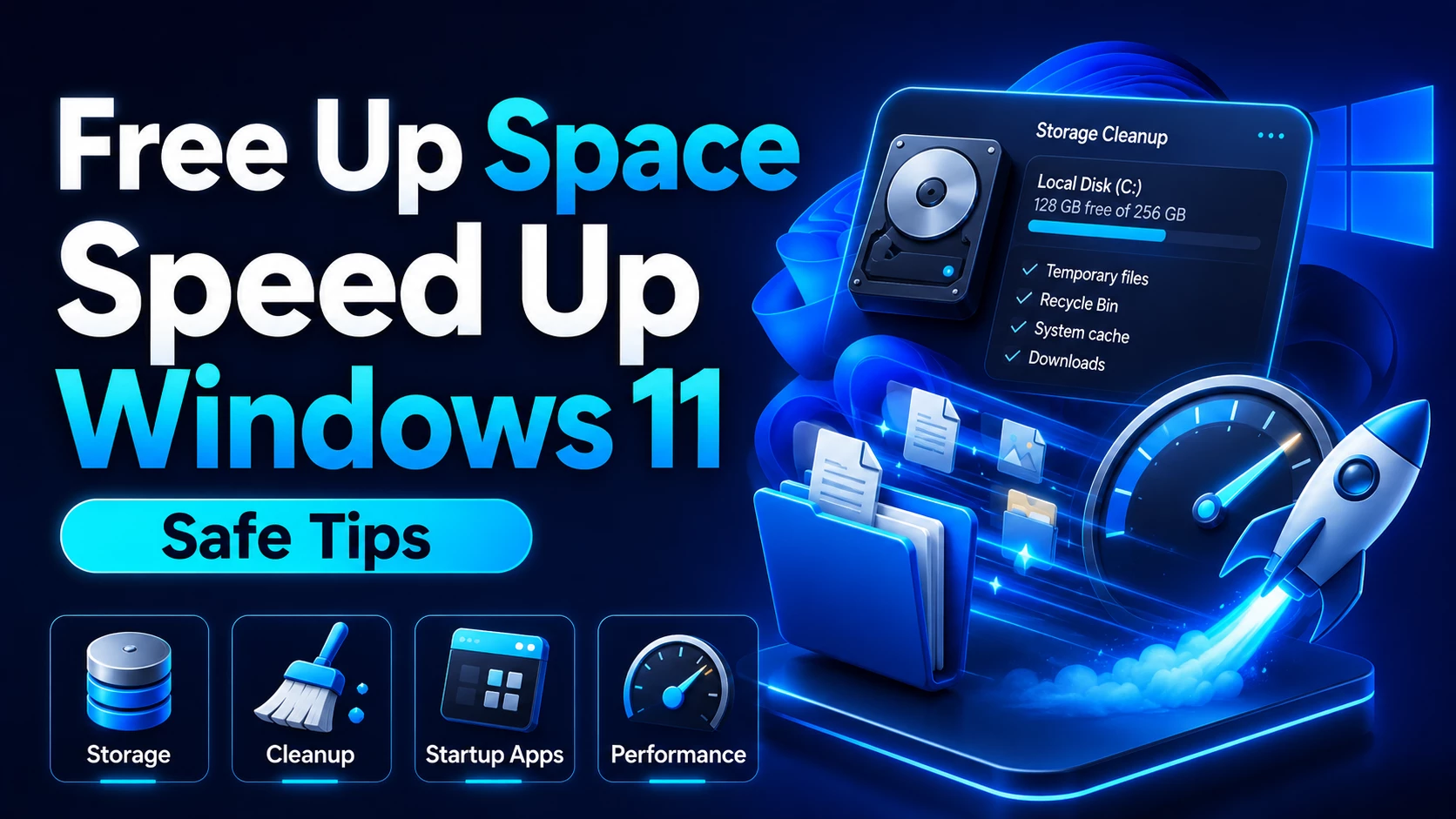
How To Free Up Space And Speed Up Windows 11 Safely
If your Windows 11 PC is running slow or showing low storage space, you do not always need to reinstall Windows. In many cases, you can improve performance by removing temporary files, cleaning unused data, uninstalling unnecessary apps, and enabling built-in Windows storage tools.
This guide explains how to free up space and make Windows 11 feel faster using safe methods. These steps are beginner-friendly and do not require risky registry edits or unknown third-party cleaner tools.
Why Windows Becomes Slow Over Time
Windows may become slower when temporary files, cache files, old downloads, unused apps, startup programs, and update files build up over time. If your system drive is almost full, Windows may also feel less responsive.
Step 1: Check Your Storage Usage
- Open Settings.
- Go to System.
- Click Storage.
- Check which category is using the most space.
This will help you understand whether apps, temporary files, downloads, videos, or system files are taking up your storage.
Step 2: Use Cleanup Recommendations
Windows 11 includes Cleanup Recommendations to help identify temporary files, large files, unused files, and other items that can be removed safely.
- Open Settings.
- Go to System.
- Click Storage.
- Select Cleanup recommendations.
- Review the files carefully.
- Select the files you want to remove.
- Click clean or remove option.
Step 3: Enable Storage Sense
Storage Sense can automatically clean temporary files and unnecessary items from your device. It is useful for users who do not want to clean storage manually every time.
- Open Settings.
- Go to System > Storage.
- Turn on Storage Sense.
- Open Storage Sense settings.
- Choose when Windows should clean temporary files.
Step 4: Clean Temporary Files
Temporary files can take a lot of space over time. Windows allows you to remove many of them safely from the Storage settings.
- Go to Settings > System > Storage.
- Click Temporary files.
- Review the selected items.
- Do not delete Downloads unless you are sure.
- Click Remove files.
Step 5: Uninstall Unused Apps
Unused apps can take storage and sometimes run background services. Removing apps you do not use can help keep your system clean.
- Open Settings.
- Go to Apps.
- Click Installed apps.
- Sort by size if needed.
- Uninstall apps you no longer use.
Step 6: Disable Unnecessary Startup Apps
Some apps start automatically when Windows boots. Too many startup apps can make startup slower.
- Press Ctrl + Shift + Esc to open Task Manager.
- Go to Startup apps.
- Disable apps that you do not need at startup.
- Restart your PC and check the difference.
Step 7: Keep Desktop Clean
A clean desktop does not only look better, but also helps you stay organized. Move large files from the desktop to proper folders such as Documents, Pictures, or Videos.
Things You Should Avoid
- Do not delete system folders manually.
- Do not use unknown PC cleaner tools from random websites.
- Do not delete files from Windows folder.
- Do not remove drivers unless you understand what they do.
- Do not delete Downloads without checking important files.
Frequently Asked Questions
Is Storage Sense safe?
Yes, Storage Sense is a built-in Windows feature. However, you should still check its settings so it does not remove files you want to keep.
Will deleting temporary files harm my PC?
Usually, deleting temporary files is safe. But always review the selected items before removing them.
Should I use third-party cleaner apps?
For most users, built-in Windows tools are enough. Avoid unknown cleaner apps because they may remove important files or show misleading warnings.
Final Words
Freeing up space and speeding up Windows 11 does not need to be complicated. By using Storage Sense, Cleanup Recommendations, temporary file cleanup, startup app control, and app uninstall options, you can keep your PC cleaner and more responsive.