
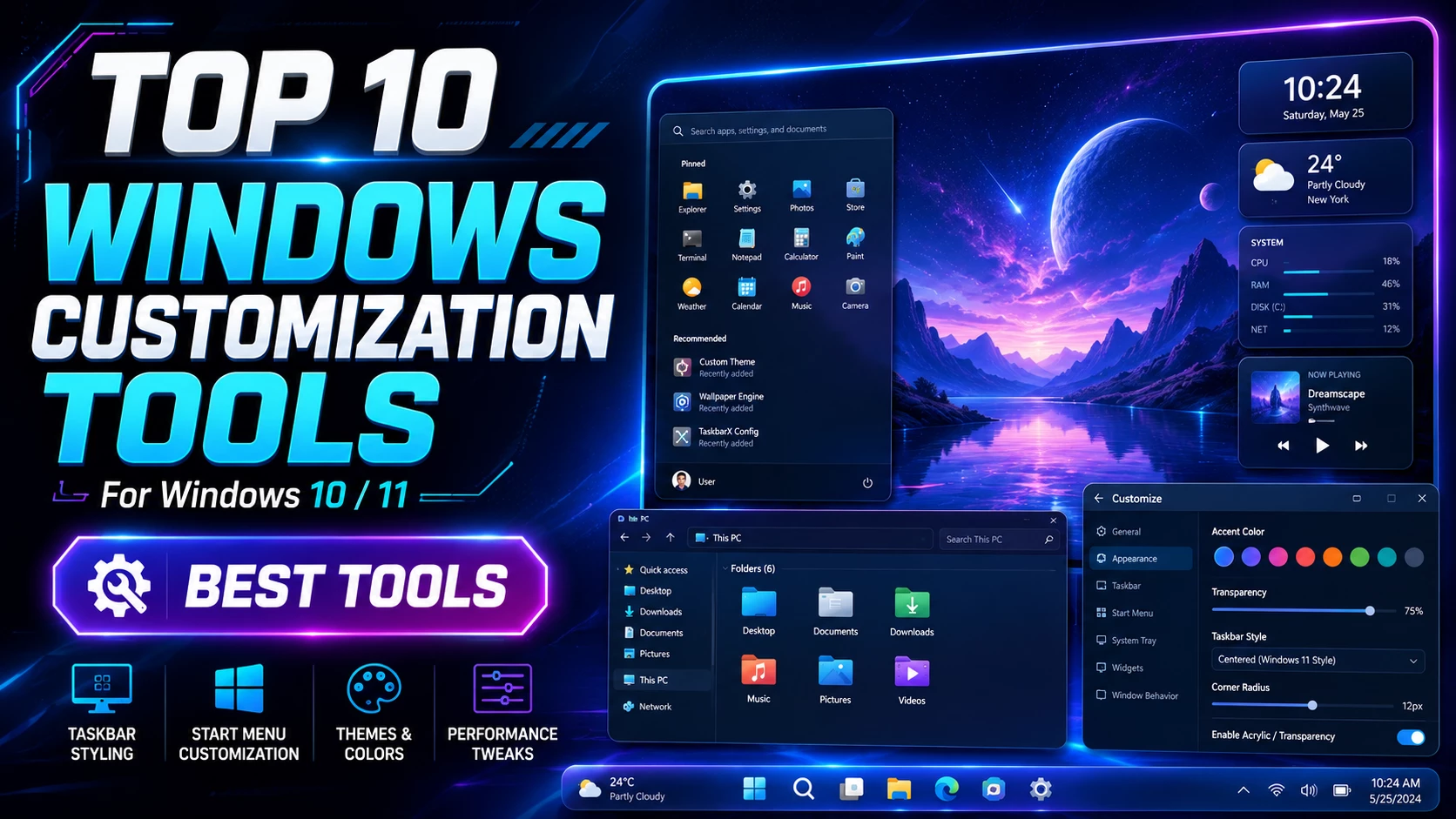
Top 10 Windows Customization Tools for Windows 10/11
Windows customization is one of the best ways to make your desktop look modern, clean and personal. Whether you want a transparent taskbar, animated wallpaper, classic Start menu, custom desktop widgets or advanced Windows tweaks, there are many powerful tools available for Windows 10 and Windows 11.
In this post, we will discuss the Top 10 Windows Customization Tools that can help you transform your PC without using unsafe theme packs. These tools are useful for desktop setup lovers, YouTube customization creators, productivity users and anyone who wants a better Windows experience.
Why Use Windows Customization Tools?
The default Windows interface is clean, but it has limited customization options. Windows customization tools allow you to change the look and behavior of different parts of the system, including the taskbar, Start menu, File Explorer, desktop wallpaper, widgets, icons, audio controls and hidden system settings.
Some tools focus only on visual design, while others improve productivity and usability. For example, Rainmeter is great for desktop widgets, Windhawk is powerful for system-level UI mods, and Microsoft PowerToys adds practical utilities for power users.
Top 10 Windows Customization Tools
1. Microsoft PowerToys
Microsoft PowerToys is one of the best free tools for Windows power users. It is developed by Microsoft and includes many utilities that improve productivity and customization. It is not only a visual customization tool, but also a complete utility collection for advanced Windows users.
PowerToys includes useful features like FancyZones for window layout management, PowerToys Run for quick app launching, Color Picker, Image Resizer, Keyboard Manager, PowerRename and many more tools. If you want to improve your Windows workflow, this is a must-have app.
- Best for: Productivity and advanced Windows tools
- Compatibility: Windows 10 and Windows 11
- Price: Free
- Official link: Microsoft PowerToys
2. Windhawk
Windhawk is a powerful Windows customization platform that allows users to install small mods for changing specific parts of Windows. It is especially popular for customizing the taskbar, Start menu, File Explorer, notification center and other Windows UI elements.
Unlike heavy theme packs, Windhawk lets you install individual mods. This means you can enable only the features you need. For example, you can use one mod for taskbar styling, another for Start menu design and another for File Explorer customization.
- Best for: Windows UI mods and advanced customization
- Compatibility: Windows 10 and Windows 11, depending on mod
- Price: Free
- Official link: Windhawk
3. Rainmeter
Rainmeter is one of the most popular desktop customization tools for Windows. It allows users to add beautiful widgets and skins to the desktop. You can add clocks, weather widgets, system monitors, music visualizers, app launchers and many other desktop elements.
Rainmeter is perfect for creating aesthetic desktop setups. Many Windows customization creators use Rainmeter with custom wallpapers, icons and docks to create unique desktop designs.
- Best for: Desktop widgets and aesthetic setups
- Compatibility: Windows
- Price: Free
- Official link: Rainmeter
4. Lively Wallpaper
Lively Wallpaper is a free and open-source tool for animated desktop wallpapers. It lets you use videos, GIFs, webpages and interactive wallpapers as your desktop background.
If you want a modern and dynamic desktop, Lively Wallpaper is one of the best choices. It is especially useful for users who want live wallpapers without buying paid software.
- Best for: Animated and live wallpapers
- Compatibility: Windows 10 and Windows 11
- Price: Free and open source
- Official link: Lively Wallpaper
5. TranslucentTB
TranslucentTB is a lightweight taskbar customization tool. It allows you to make the Windows taskbar transparent, translucent, acrylic, blurred or opaque.
This tool is perfect for users who want a clean and minimal desktop look. It works very well with dark wallpapers, glass themes and modern Windows 11 setups.
- Best for: Transparent taskbar customization
- Compatibility: Windows 10 and Windows 11
- Price: Free
- Official link: TranslucentTB GitHub
6. StartAllBack
StartAllBack is a popular Windows 11 customization tool for users who prefer the classic Windows experience. It can restore and improve the taskbar, Start menu, File Explorer and context menu.
If you do not like the default Windows 11 taskbar or Start menu, StartAllBack can make the system feel closer to Windows 7 or Windows 10. It is a good choice for users who want classic usability with modern Windows.
- Best for: Classic Start menu and taskbar experience
- Compatibility: Windows 11
- Price: Paid with trial
- Official link: StartAllBack
7. ExplorerPatcher
ExplorerPatcher is a free and open-source customization tool for Windows 11. It is mainly used to restore classic Windows behavior and customize the taskbar, Start menu, system tray and File Explorer.
This tool is useful for users who want more control over Windows 11 interface. However, because it modifies Windows shell behavior, users should install it carefully and keep it updated.
- Best for: Restoring classic Windows behavior
- Compatibility: Windows 11
- Price: Free and open source
- Official link: ExplorerPatcher GitHub
8. Winaero Tweaker
Winaero Tweaker is an all-in-one tweaking tool for Windows. It allows users to adjust many hidden Windows settings that are not easily available in the normal Settings app.
With Winaero Tweaker, you can customize appearance, behavior, context menus, File Explorer options, privacy settings and many other system features. It is a useful tool for advanced users who want deeper Windows control.
- Best for: Hidden Windows tweaks and system settings
- Compatibility: Windows versions supported by the tool
- Price: Free
- Official link: Winaero Tweaker
9. Open-Shell Menu
Open-Shell Menu is a classic Start menu customization tool. It is the continuation of Classic Shell and is useful for users who want a Windows 7-style Start menu on newer Windows versions.
Open-Shell is great for users who prefer a simple and familiar Start menu layout. It also includes Explorer-related improvements, making it useful for classic Windows lovers.
- Best for: Classic Start menu customization
- Compatibility: Windows 7, 8, 8.1, 10 and 11
- Price: Free and open source
- Official link: Open-Shell GitHub
10. Wallpaper Engine
Wallpaper Engine is one of the most popular live wallpaper tools for Windows. It allows users to use animated wallpapers, videos, websites and interactive wallpapers on the desktop.
Wallpaper Engine is a paid app available on Steam. It is popular because of its large wallpaper library and Steam Workshop support. If you want high-quality animated wallpapers and community-created designs, this is one of the best options.
- Best for: Premium animated wallpapers
- Compatibility: Windows
- Price: Paid
- Official link: Wallpaper Engine on Steam
Best Tool Combination for a Complete Windows Setup
For a complete desktop transformation, you can combine different tools based on your need. For example, use Rainmeter for widgets, Lively Wallpaper for animated wallpaper, TranslucentTB for a transparent taskbar and Windhawk for deeper UI customization.
A good modern setup can include:
- Rainmeter for desktop widgets
- TranslucentTB for transparent taskbar
- Windhawk for taskbar, Start menu and Explorer mods
- Lively Wallpaper or Wallpaper Engine for live wallpapers
- PowerToys for productivity features
Which Windows Customization Tool is Best?
The best tool depends on what you want to customize. If you want widgets, Rainmeter is best. If you want live wallpapers, Lively Wallpaper or Wallpaper Engine is better. If you want to modify the Windows interface, Windhawk, StartAllBack and ExplorerPatcher are useful. For productivity and daily workflow, Microsoft PowerToys is one of the best choices.
Safety Tips Before Customizing Windows
- Download tools only from official websites, Microsoft Store, Steam or trusted GitHub pages.
- Create a system restore point before installing deep customization tools.
- Avoid cracked or modified software.
- Install one tool at a time and test your system.
- Keep your tools updated after major Windows updates.
- Do not use too many taskbar or Start menu tools together because they may conflict.
Final Thoughts
Windows customization tools can completely change the look and feel of your desktop. From simple transparent taskbars to advanced Start menu modifications, these tools give you more control over your PC.
For beginners, Microsoft PowerToys, Rainmeter, Lively Wallpaper and TranslucentTB are great starting points. For advanced users, Windhawk, ExplorerPatcher, StartAllBack and Winaero Tweaker provide deeper customization options.
Use these tools safely, download them from official sources and create your own unique Windows desktop setup.
Frequently Asked Questions
What is the best free Windows customization tool?
Microsoft PowerToys, Rainmeter, Windhawk, Lively Wallpaper and TranslucentTB are some of the best free Windows customization tools.
Can I customize Windows 11 taskbar?
Yes, you can customize the Windows 11 taskbar using tools like Windhawk, TranslucentTB, StartAllBack and ExplorerPatcher.
Is Rainmeter safe?
Rainmeter is safe when downloaded from the official website. However, always be careful when downloading third-party skins from unknown sources.
Is Wallpaper Engine free?
No, Wallpaper Engine is a paid app available on Steam. For a free alternative, you can use Lively Wallpaper.
Do customization tools slow down Windows?
Most lightweight tools do not noticeably slow down Windows. However, live wallpapers, heavy Rainmeter skins or multiple UI modification tools may use extra system resources.
Can I use multiple Windows customization tools together?
Yes, but it is better to avoid using multiple tools that modify the same part of Windows, such as the taskbar or Start menu, because they may conflict with each other.