
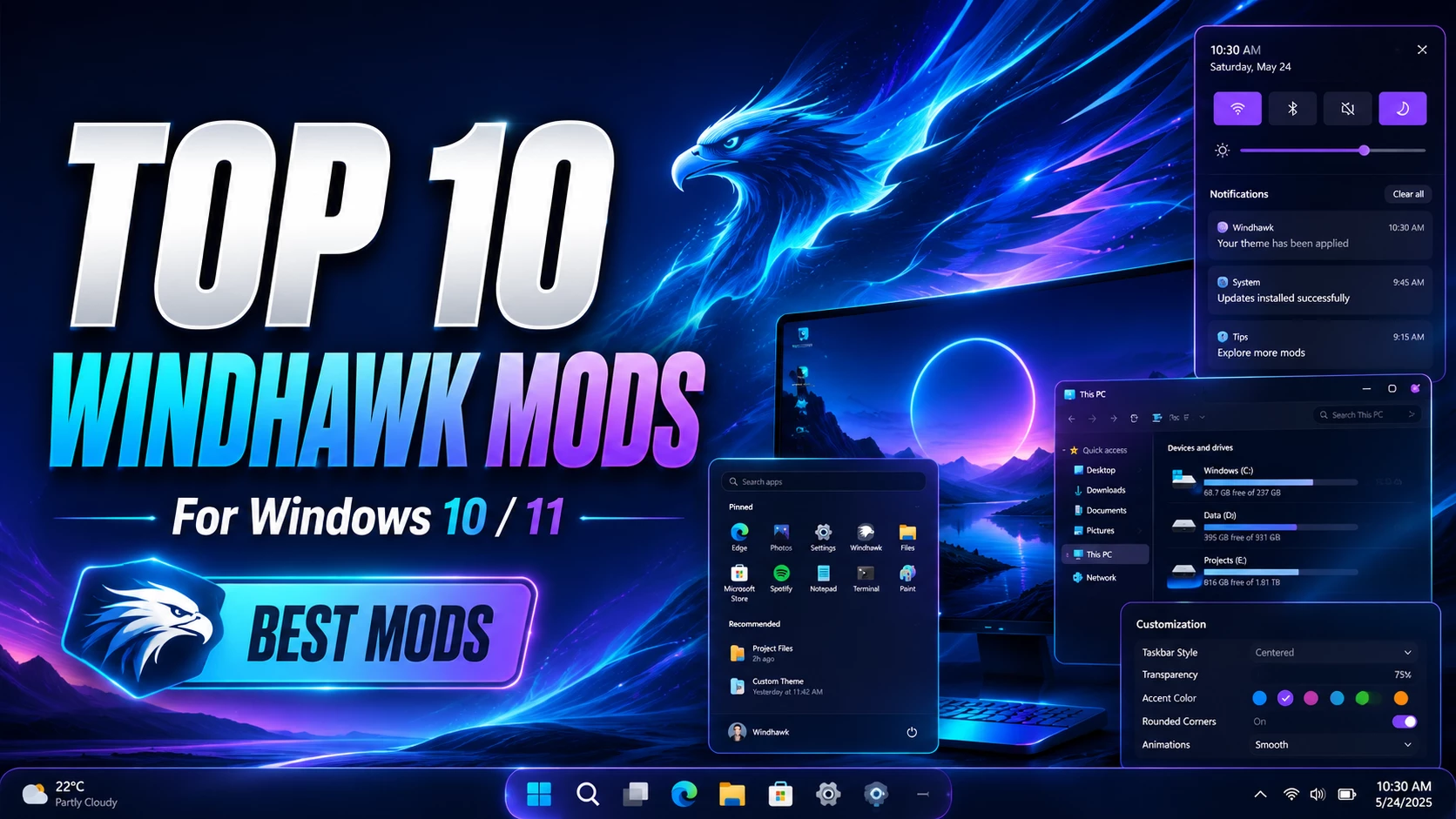
Top 10 Windhawk Mods for Windows 10/11: Best Mods to Customize Your Desktop
If you love Windows customization, Windhawk is one of the most useful tools to change the look and behavior of Windows without installing heavy transformation packs. With Windhawk mods, you can customize the taskbar, Start menu, File Explorer, notification center, context menu, title bar and many other parts of Windows.
In this post, I will share the Top 10 Windhawk Mods that can make your Windows 10 or Windows 11 desktop look cleaner, modern and more personal. These mods are useful for users who want a glassy, minimal, classic, macOS-style, Windows 7-style or futuristic desktop setup.
What is Windhawk?
Windhawk is a Windows customization platform where users can install small mods to change specific parts of Windows. Instead of replacing system files, Windhawk applies targeted modifications through individual mods. This makes it flexible because you can enable, disable or remove each mod separately.
The best thing about Windhawk is that you do not need to install a full theme pack. You can simply choose the mods you need, such as taskbar customization, Start menu styling, File Explorer design or context menu tweaks.
Top 10 Windhawk Mods for Windows Customization
1. Windows 11 Taskbar Styler
Windows 11 Taskbar Styler is one of the most popular Windhawk mods for desktop customization. It allows you to change the appearance of the Windows 11 taskbar with different themes and custom styles.
With this mod, you can create a transparent taskbar, rounded taskbar, macOS-style dock, Windows 7-style taskbar or a modern glass effect taskbar. It is perfect for users who want their desktop to look unique and premium.
- Best for: Taskbar design customization
- Compatibility: Windows 11
- Use case: Glass taskbar, rounded taskbar, dock-style taskbar
Official mod page: Windows 11 Taskbar Styler
2. Windows 11 Start Menu Styler
The Windows 11 Start Menu Styler mod is a must-have for anyone who wants to change the default Windows 11 Start menu. It allows you to apply custom Start menu themes and create a cleaner layout.
You can use this mod to create a glass Start menu, Windows 10X-style Start menu, Aero-style Start menu or a futuristic Start menu design. This is especially useful for users who make Windows customization videos or desktop setup tutorials.
- Best for: Start menu redesign
- Compatibility: Windows 11
- Use case: Glass Start menu, minimal Start menu, custom theme layout
Official mod page: Windows 11 Start Menu Styler
3. Windows 11 File Explorer Styler
If you want to make File Explorer look more modern, Windows 11 File Explorer Styler is one of the best Windhawk mods to try. It lets you customize the appearance of File Explorer and apply different visual styles.
This mod is useful for creating a transparent, glassy or cleaner File Explorer interface. It can help your Windows setup look more consistent when combined with taskbar and Start menu styling mods.
- Best for: File Explorer visual customization
- Compatibility: Windows 11
- Use case: Glass Explorer, minimal Explorer, modern Windows theme
Official mod page: Windows 11 File Explorer Styler
4. Windows 11 Notification Center Styler
The Windows 11 Notification Center Styler mod helps you customize the Notification Center and Quick Settings panel. If your taskbar and Start menu already have a custom style, this mod completes the overall desktop look.
You can use this mod to create a more modern notification panel with better transparency, spacing and visual design. It is a great choice for users who want a full Windows transformation setup.
- Best for: Notification panel customization
- Compatibility: Windows 11
- Use case: Glass notification center, modern quick settings panel
Official mod page: Windows 11 Notification Center Styler
5. Taskbar Height and Icon Size
The Taskbar Height and Icon Size mod allows you to adjust the height of the Windows 11 taskbar and change the icon size. This is very helpful because Windows 11 does not provide many built-in taskbar size options.
With this mod, you can make your taskbar smaller for a compact look or larger for better visibility. It is also useful for laptop users who want to save screen space.
- Best for: Taskbar size control
- Compatibility: Windows 11
- Use case: Small taskbar, large icons, compact desktop setup
Official mod page: Taskbar Height and Icon Size
6. Taskbar on Top for Windows 11
Many users like to place the taskbar at the top of the screen. The Taskbar on Top for Windows 11 mod brings this option back for Windows 11 users.
This mod is useful if you prefer an old-school desktop layout or want a different workflow. It can also make your desktop feel closer to Linux or macOS-style setups, depending on your theme.
- Best for: Moving taskbar position
- Compatibility: Windows 11
- Use case: Top taskbar layout, classic desktop workflow
Official mod page: Taskbar on Top for Windows 11
7. Taskbar Classic Context Menu
The Taskbar Classic Context Menu mod brings back a more classic right-click menu experience on the taskbar. Many users prefer the older style because it feels faster and more practical.
If you like classic Windows behavior and want quick access to familiar options, this mod is a very useful addition to your setup.
- Best for: Classic taskbar right-click menu
- Compatibility: Windows 10 64-bit and Windows 11
- Use case: Restore classic usability and faster access
Official mod page: Taskbar Classic Context Menu
8. Taskbar Tray Icon Spacing and Grid
The Taskbar Tray Icon Spacing and Grid mod lets you change the spacing between tray icons on the taskbar. This is helpful when your system tray looks too wide, crowded or uneven.
You can reduce tray icon spacing for a compact look or increase it for better visibility. It is a small mod, but it can make your taskbar look much cleaner.
- Best for: System tray spacing customization
- Compatibility: Windows taskbar tray area
- Use case: Cleaner tray icons, compact taskbar setup
Official mod page: Taskbar Tray Icon Spacing and Grid
9. Disable Taskbar Thumbnails
The Disable Taskbar Thumbnails mod allows you to disable thumbnail previews when you hover over taskbar icons. Some users find these previews distracting, especially when many windows are open.
This mod can make the taskbar feel faster and simpler. It is useful for productivity-focused users who want a cleaner workflow.
- Best for: Reducing taskbar hover distractions
- Compatibility: Windows 10 64-bit and Windows 11
- Use case: Cleaner taskbar behavior, productivity setup
Official mod page: Disable Taskbar Thumbnails
10. Windows 11 Custom Title Bar Colours
The Windows 11 Custom Title Bar Colours mod allows you to change active and inactive title bar colors. This is useful if you want your app windows to match your desktop theme.
For example, if your setup uses dark, neon, blue, purple or glass-style colors, this mod can help make windows look more consistent with the full theme.
- Best for: Window title bar color customization
- Compatibility: Windows 11
- Use case: Matching title bars with custom themes
Official mod page: Windows 11 Custom Title Bar Colours
Best Windhawk Mod Combination for a Modern Desktop
If you want a complete modern Windows customization setup, you can use these mods together:
- Windows 11 Taskbar Styler for a glass or dock-style taskbar
- Windows 11 Start Menu Styler for a matching Start menu
- Windows 11 File Explorer Styler for a cleaner Explorer design
- Windows 11 Notification Center Styler for a complete visual style
- Taskbar Tray Icon Spacing and Grid for a compact system tray
This combination is perfect for users who want to create a premium Windows desktop setup for daily use, YouTube tutorials or customization showcase videos.
How to Install Windhawk Mods Safely
- Download Windhawk only from the official website.
- Create a system restore point before installing mods.
- Install one mod at a time and test it.
- Avoid installing too many experimental mods together.
- If something looks broken, disable the last installed mod.
- Keep Windhawk and your installed mods updated.
Are Windhawk Mods Safe?
Windhawk mods are generally safe when downloaded from the official Windhawk platform. However, they are still third-party modifications. Some mods may stop working correctly after a Windows update. That is why it is always better to install only the mods you actually need and keep a restore point ready.
For best results, do not mix too many customization tools at the same time. For example, if you are already using another taskbar customization app, avoid applying multiple taskbar mods together unless you know they are compatible.
Final Thoughts
Windhawk is one of the best tools for users who want to customize Windows 10 and Windows 11 in a flexible way. The top 10 Windhawk mods listed above can help you transform your desktop without using heavy theme packs.
For a full visual transformation, start with Windows 11 Taskbar Styler, Windows 11 Start Menu Styler, Windows 11 File Explorer Styler and Windows 11 Notification Center Styler. For usability improvements, try Taskbar Height and Icon Size, Taskbar Classic Context Menu and Disable Taskbar Thumbnails.
If you are a Windows customization lover, these Windhawk mods are definitely worth trying.
Frequently Asked Questions
What is the best Windhawk mod?
The best Windhawk mod depends on your need. For visual customization, Windows 11 Taskbar Styler and Windows 11 Start Menu Styler are two of the best options.
Can I use Windhawk on Windows 10?
Some Windhawk mods support Windows 10, while many newer mods are designed mainly for Windows 11. Always check the compatibility details before installing a mod.
Do Windhawk mods slow down Windows?
Most lightweight Windhawk mods should not noticeably slow down Windows. However, using too many visual mods together may affect stability on some systems.
Can I uninstall Windhawk mods?
Yes. You can disable or uninstall individual Windhawk mods from the Windhawk app whenever needed.
Is Windhawk good for Windows customization videos?
Yes. Windhawk is very useful for Windows customization videos because it helps create different taskbar, Start menu, Explorer and notification center styles.