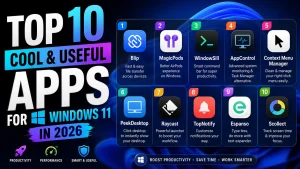

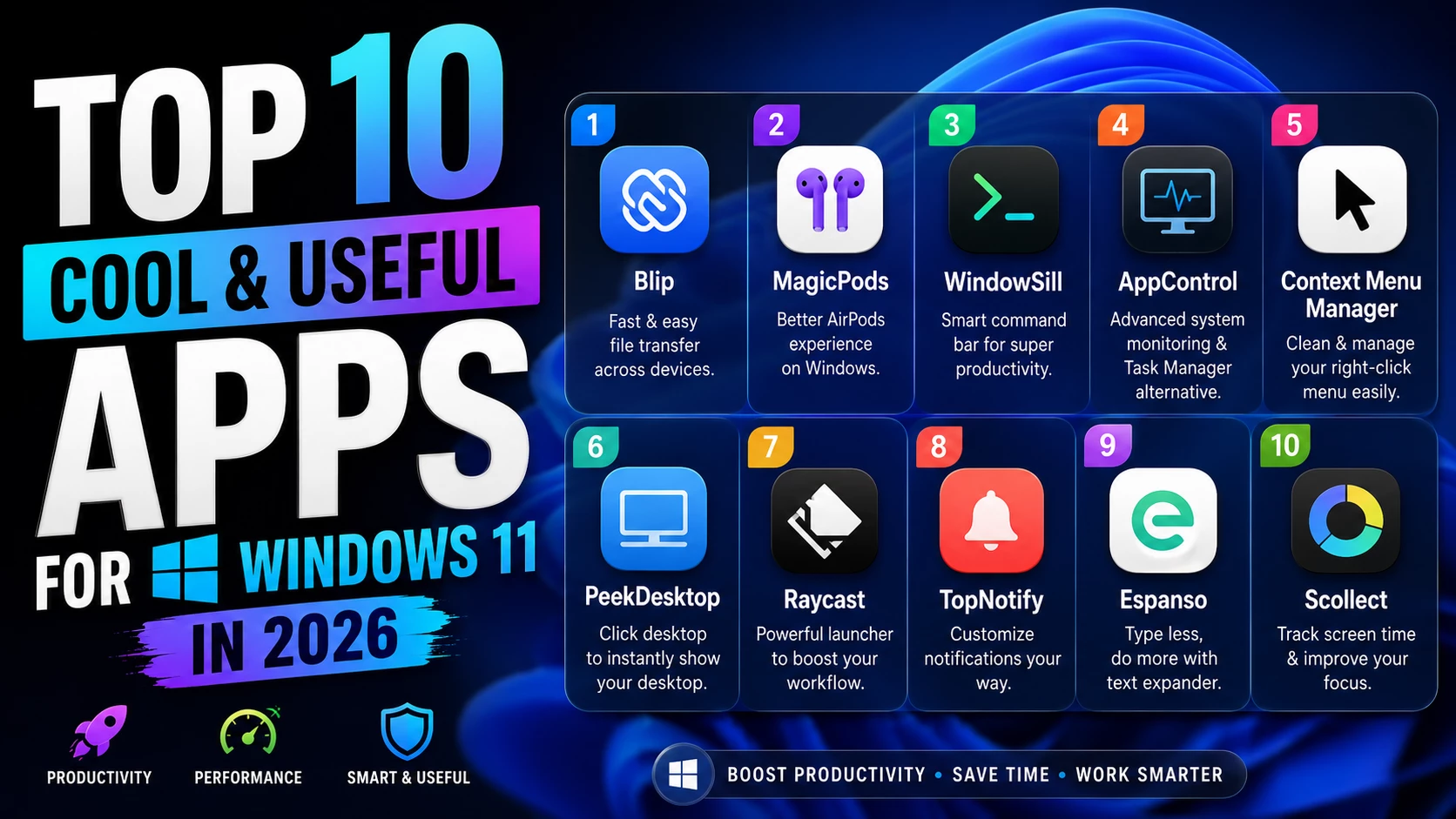
Top 10 Cool and Useful Apps for Windows 11 in 2026
Meta Description: Discover the top 10 cool and useful apps for Windows 11 in 2026. Improve productivity, file sharing, notifications, context menus, screen time tracking and overall Windows workflow.
Windows 11 already comes with many built-in tools, but third-party apps can make the experience much smoother, faster and more personal. In 2026, many Windows users are looking for lightweight apps that solve real daily problems instead of adding unnecessary clutter. Whether you want faster file transfer, better AirPods support, a smarter taskbar, a better Task Manager alternative, cleaner right-click menus or improved productivity, these apps can help you get more from your PC.
In this post, I am sharing the Top 10 Windows 11 Apps 2026 that are useful for students, office users, content creators, developers and everyday PC users. These apps are not just for visual customization; they are practical tools that can improve your workflow, reduce repetitive tasks and make Windows 11 feel more polished.
Important Note: Always download software from the official website, GitHub page or Microsoft Store. Avoid cracked or modified versions because they may contain malware or unwanted programs. Before installing any third-party app, check the source, scan the file and create a restore point if needed.
1. Blip – Fast Cross-Platform File Transfer
Blip is a very useful file transfer app for people who use multiple devices. If you often move files between Windows, Android, iPhone, Mac or other devices, Blip can make the process easier. Instead of uploading files to cloud storage and then downloading them again, Blip allows direct file transfer between devices.
This is especially helpful for creators who transfer videos, images, screenshots, documents or project files. It can save time and keep the original quality of files. For users who work between phone and PC every day, Blip can become one of the most useful Windows 11 apps.
2. MagicPods – Better AirPods Experience on Windows
MagicPods is designed for users who use AirPods, Beats or supported Bluetooth headphones with Windows. Normally, Apple headphones work on Windows through Bluetooth, but the experience is not as smooth as on Apple devices. MagicPods helps by showing battery level, connection status and extra controls in a cleaner way.
If you use AirPods for online classes, meetings, music or video editing, this app can make your headphone experience more comfortable. It gives Windows users some of the missing features that are usually available on macOS or iOS.
3. WindowSill – Smart Command Bar for Windows
WindowSill is a modern command bar and productivity tool for Windows. It can help you work faster by giving quick access to useful actions from a clean bar-style interface. Some users may like it because it feels like an extra productivity layer on top of the normal Windows taskbar.
WindowSill is useful for people who write emails, edit text, translate content or want quick tools without switching between too many apps. It can also be helpful for students, office users and creators who want a cleaner workflow on Windows 11.
4. AppControl – Advanced Task Manager Alternative
AppControl is a useful app for users who want more detailed system monitoring than the default Windows Task Manager. It helps you see system activity, resource usage and app behavior more clearly. This can be useful when your PC becomes slow and you want to understand what happened before the problem appeared.
For gamers, developers, video editors and power users, AppControl can be a helpful diagnostic tool. It is not only about closing apps; it is about understanding how your computer is using CPU, RAM, GPU and other resources over time.
5. Windows 11 Context Menu Manager – Clean Right-Click Menu
Windows 11 Context Menu Manager is a small but useful tool for managing unwanted right-click menu entries. Many apps add extra options to the Windows context menu, and over time the menu can become slow, messy and confusing.
This tool helps you disable unnecessary context menu items without manually editing the Windows Registry. If you install many apps and your right-click menu feels cluttered, this app can make your Windows 11 experience cleaner and faster.
Download Windows 11 Context Menu Manager
6. PeekDesktop – Click Desktop to Show Desktop
PeekDesktop brings a simple macOS-style feature to Windows. It allows you to click on the empty desktop area to quickly hide open windows and show your desktop. Clicking again can bring your windows back.
This is useful for users who keep important files, folders or shortcuts on the desktop. Instead of pressing keyboard shortcuts or moving your mouse to a small corner, you can quickly access your desktop with a natural click action.
7. Raycast – Powerful Launcher for Windows
Raycast is a powerful launcher and productivity app. It is popular among Mac users, and now Windows users can also try it. Raycast helps you launch apps, search files, run commands, use shortcuts and perform quick actions from one command bar.
If you like keyboard-based workflows, Raycast can save a lot of time. Instead of opening menus and clicking through many windows, you can type what you need and perform actions quickly. It is a strong option for productivity-focused Windows 11 users.
8. TopNotify – Customize Windows Notifications
TopNotify gives you more control over Windows notifications. By default, Windows notifications appear in a fixed position, which may not be ideal for all users. TopNotify lets you move notification popups, adjust transparency and make notifications feel less distracting.
This app is especially useful for people who use large monitors, ultrawide displays or gaming setups. Better notification placement can help you stay informed without interrupting your work or entertainment.
9. Espanso – Text Expander for Faster Typing
Espanso is a privacy-first text expander that works across Windows, macOS and Linux. It helps you type faster by replacing short text triggers with longer text. For example, you can create shortcuts for email replies, addresses, signatures, dates, code snippets or frequently used phrases.
This app is very useful for writers, students, developers, customer support workers and office users. If you type the same information again and again, Espanso can save time and reduce mistakes.
10. Scolect – Screen Time and Productivity Tracker
Scolect is a screen time and app usage tracker for desktop users. It helps you understand how much time you spend on different applications. This can be helpful if you want to improve focus, reduce distractions or track your daily productivity.
Scolect is useful for students, remote workers and anyone who wants better control over computer usage. With app tracking, focus tools and productivity insights, it can help you build better digital habits.
Which Windows 11 App Should You Try First?
If you transfer files often, start with Blip. If you use AirPods or Bluetooth headphones, try MagicPods. If you want better productivity, Raycast, WindowSill and Espanso are excellent options. For system monitoring, AppControl is a strong choice. For a cleaner Windows interface, Windows 11 Context Menu Manager, PeekDesktop and TopNotify can improve small but important parts of the Windows experience.
Final Words
These Top 10 Windows 11 Apps 2026 are useful because they solve real problems. They can improve file sharing, productivity, notification control, system monitoring, screen time tracking and the overall Windows 11 workflow. You do not need to install all of them. Choose the apps that match your daily needs and keep your system clean.
For the best experience, download apps only from official sources, keep them updated and remove tools you do not use. A good Windows setup is not about installing many apps; the best experience, download apps only it is about choosing the right apps that make your work easier.
Source Credit
This post is inspired by the app list published by Neowin. The content here is rewritten in original wording with added descriptions, safety notes and WordPress-friendly formatting.