
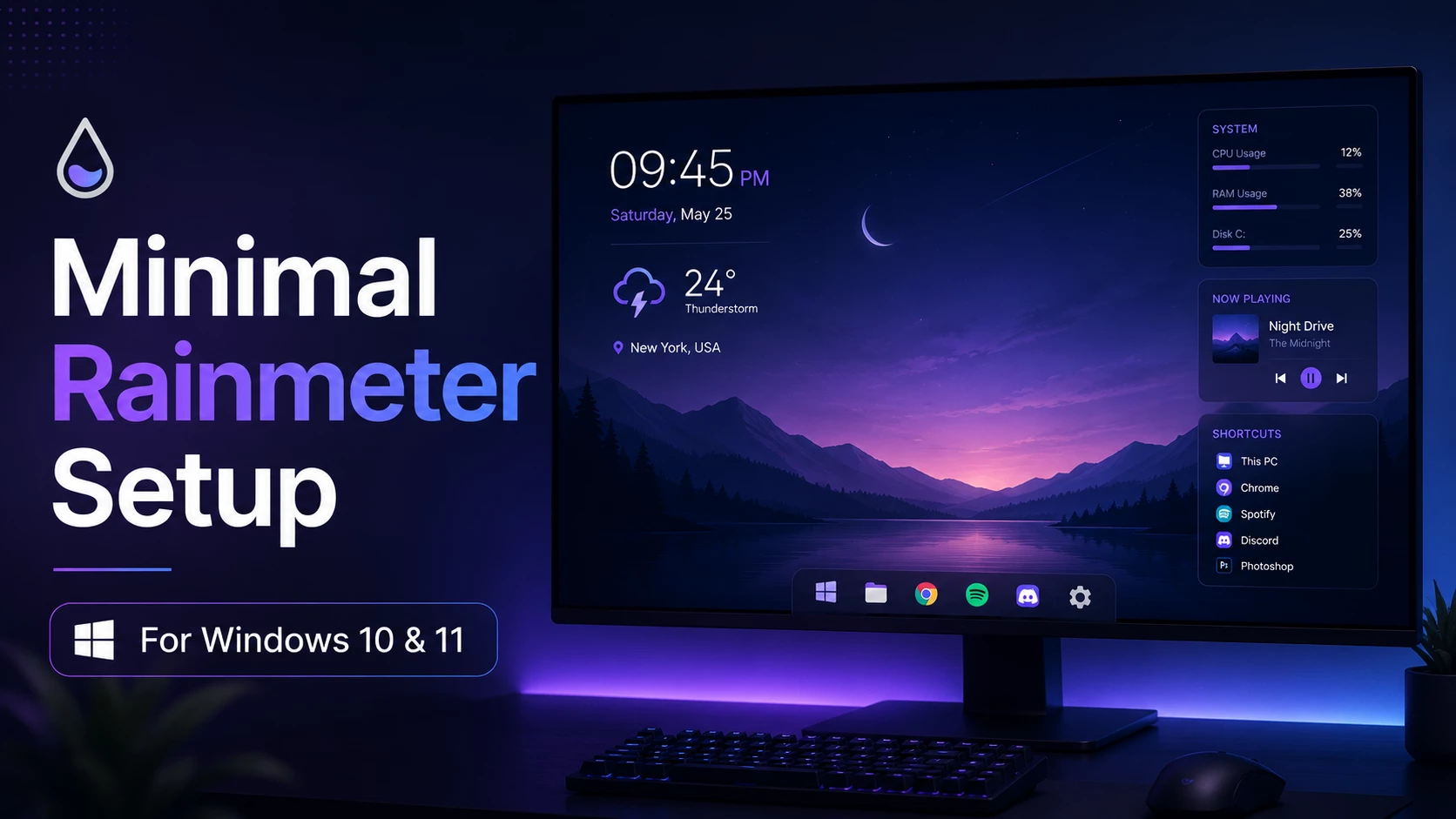
Minimal Rainmeter Desktop Setup For Windows 10 & 11
Minimal Rainmeter Desktop Setup for Windows 10 and Windows 11 is a clean and modern customization idea for users who want useful widgets on their desktop. Rainmeter is one of the most popular tools for adding desktop skins, clocks, system monitors, weather widgets, audio visualizers, launchers, and stylish information panels.
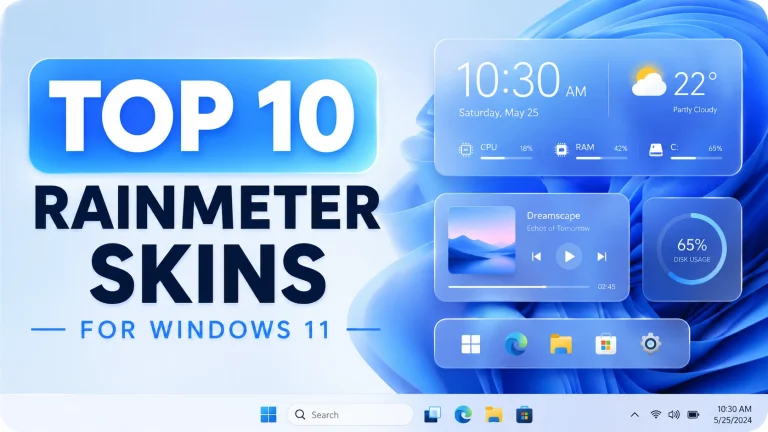
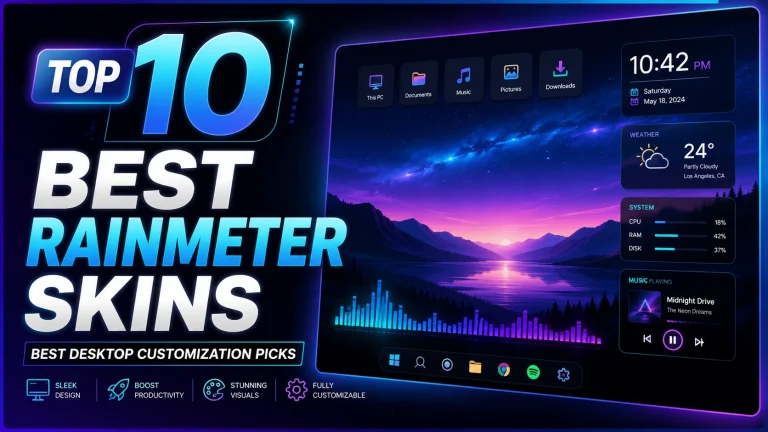
If you want your Windows desktop to look more professional and informative, Rainmeter is a great option. It allows you to display important information directly on your desktop without opening extra apps. You can create a minimal workspace with a clock, date, CPU usage, RAM usage, storage status, weather, music player, and quick app shortcuts.
Why Choose A Minimal Rainmeter Setup?
Many users make their desktop too crowded with many widgets and icons. A minimal Rainmeter setup keeps the desktop clean while still showing useful information. This type of setup is perfect for students, office users, gamers, designers, and content creators who want a beautiful but practical desktop.
The best part of Rainmeter is flexibility. You can use ready-made skins or customize them according to your wallpaper, theme color, and desktop style.
Main Features Of This Setup
- Clean desktop clock and date widget
- System monitor for CPU, RAM, and storage
- Weather widget for quick updates
- Music player and audio visualizer support
- Minimal app launcher
- Customizable skin position and size
- Works with Windows themes and wallpapers
- Lightweight desktop customization
Recommended Rainmeter Widgets
- Clock and date widget for a clean desktop header.
- System monitor widget to track CPU, RAM, and disk usage.
- Weather widget for daily temperature and condition updates.
- Music player widget for Spotify or local music controls.
- Audio visualizer for a stylish desktop effect.
- App launcher to reduce desktop shortcut clutter.
How To Create A Clean Rainmeter Desktop
- Install Rainmeter from the official source.
- Choose a simple wallpaper with enough empty space.
- Install only the widgets you need.
- Place widgets neatly on one side of the screen.
- Use matching colors for a consistent look.
- Remove unnecessary desktop icons.
- Save your layout after finishing the setup.
Recommended Rainmeter Skins And Download Links
To complete this minimal Rainmeter desktop setup, you can use the following Rainmeter skins, widgets, and customization resources. These links are added so users can easily download the required tools and build a clean Windows 10 or Windows 11 desktop setup.
1. Rainmeter Official App
Rainmeter is required before installing any Rainmeter skin. Install Rainmeter first, then download and apply the skins below.
2. JaxCore Widgets
JaxCore is a modern Rainmeter-based widget system. It includes useful modules and widgets for clocks, players, launchers, text widgets, and desktop productivity customization. It is a good option for users who want a clean and modern Rainmeter setup.
3. Droptop Four
Droptop Four is a popular dropdown menu bar and app launcher for Windows and Rainmeter. It is useful if you want a clean top bar, quick app access, weather information, and a more organized desktop layout.
4. Monstercat Visualizer
Monstercat Visualizer is a stylish audio visualizer skin for Rainmeter. It is perfect for users who want a music visualizer, media controls, and a modern audio-reactive desktop effect.
5. Cleartext Now Playing Widget
Cleartext is a minimal Rainmeter now-playing widget. It is useful for showing currently playing music in a clean text-based style. Note that this project is older/discontinued, but many users still use it for simple music display setups.
Suggested Skin Combination For This Setup
For a clean minimal desktop, you do not need to install too many skins at once. A simple combination will look better and run smoother. You can use JaxCore for clock and text widgets, Droptop Four for the top menu/app launcher, Monstercat Visualizer for music visualization, and Cleartext for a minimal now-playing display.
- Clock and Date: Use JaxCore ModularClocks or a simple Rainmeter clock widget.
- System Monitor: Use JaxCore widgets or any lightweight Rainmeter system monitor skin.
- Weather / Top Bar: Use Droptop Four for a clean top bar and quick information.
- Music Visualizer: Use Monstercat Visualizer for audio-reactive desktop effects.
- Now Playing: Use Cleartext for a simple music title and artist display.
Download Safety Note
Always download Rainmeter skins from official websites, GitHub releases, or trusted creator pages. Avoid unknown ZIP files from random websites because some packages may include unwanted scripts or modified files. Before applying a full customization setup, it is also recommended to create a system restore point.
Best Wallpaper Style For Rainmeter
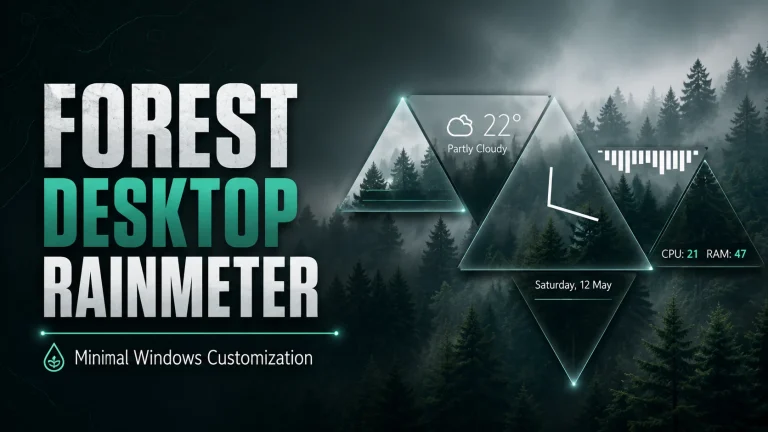
For a minimal Rainmeter setup, use a dark, blurred, gradient, or clean landscape wallpaper. Avoid wallpapers with too many details because widgets may become hard to read. A simple wallpaper makes the desktop look premium and helps widgets stand out clearly.
Performance Tips
Rainmeter is usually lightweight, but using too many animated skins can affect performance on low-end PCs. For better speed, use only essential widgets and avoid multiple heavy visualizers at the same time. If your computer is old, keep the setup simple with a clock, system monitor, and launcher only.
Compatibility
- Windows 10
- Windows 11
Important Safety Note
Download Rainmeter skins only from trusted sources. Some skin packages may include external scripts or files, so always check the downloaded package before installing. It is also a good idea to create a restore point before applying a full customization setup.
Frequently Asked Questions
Is Rainmeter free?
Yes, Rainmeter is free and widely used for Windows desktop customization.
Does Rainmeter slow down my PC?
A simple Rainmeter setup does not usually slow down a PC. However, heavy animated skins and multiple visualizers can use more CPU or GPU resources.
Can I remove Rainmeter widgets later?
Yes, you can unload, disable, or delete Rainmeter skins anytime from the Rainmeter manager.
Final Words
Minimal Rainmeter Desktop Setup for Windows 10 and 11 is a great way to make your desktop beautiful, useful, and organized. With the right widgets, wallpaper, and layout, you can create a clean desktop that improves both style and productivity.