
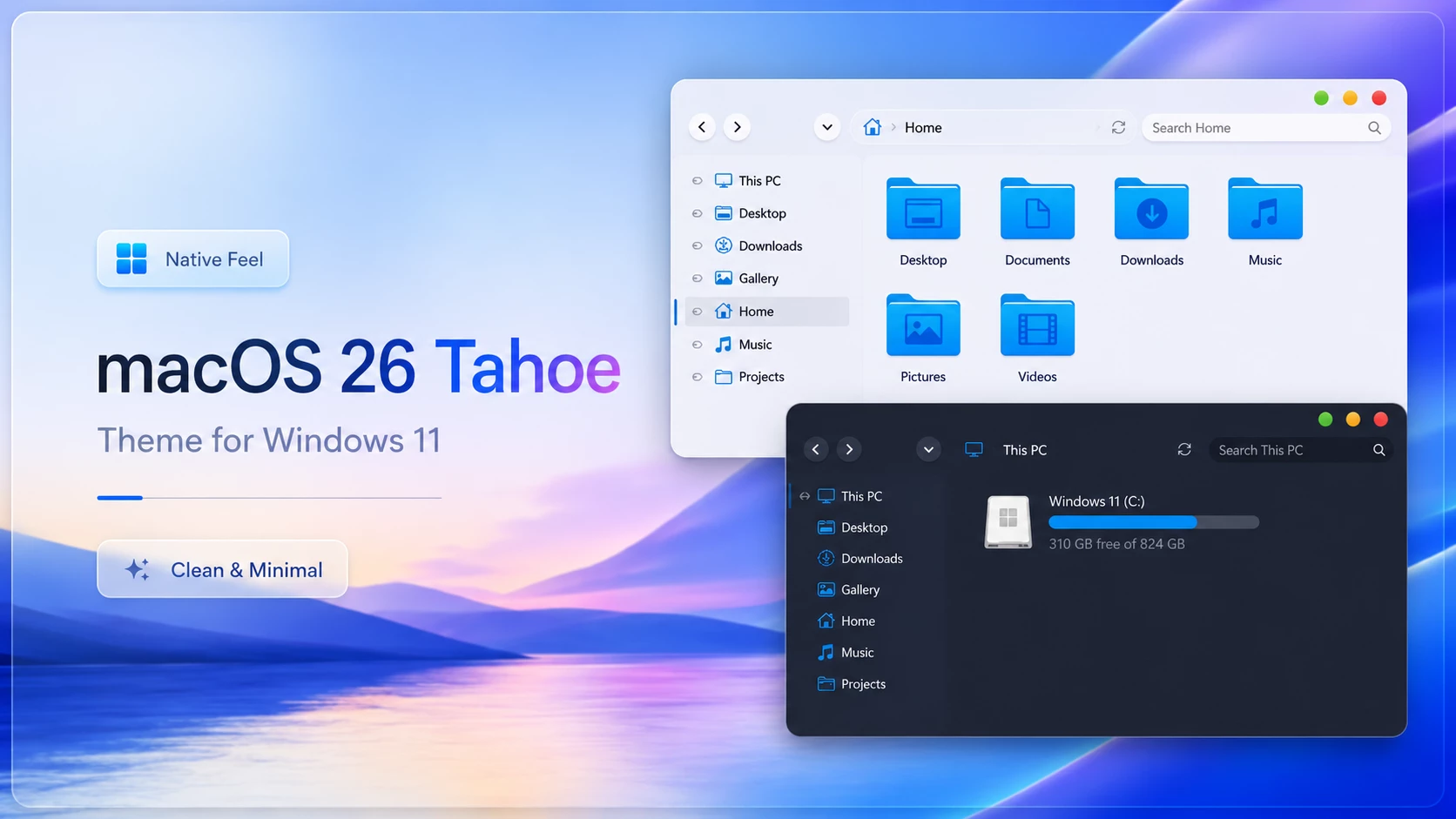
macOS 26 Tahoe Theme For Windows 11: Liquid Glass Style
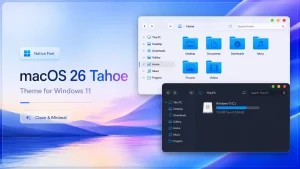
The macOS 26 Tahoe Theme for Windows 11 is designed for users who enjoy a modern glass-inspired desktop appearance. It combines translucent surfaces, soft backgrounds, matching icons, and clean interface elements to give Windows 11 a fresh and polished look.
This setup is suitable for users who want a more coordinated desktop without changing their operating system. You can apply only a few visual elements or combine the complete package for a more immersive macOS-inspired Windows experience.
What Is the macOS 26 Tahoe Theme?
The macOS 26 Tahoe Theme is a third-party Windows customization package inspired by the visual style of macOS Tahoe. Its design focuses on layered transparency, rounded interface elements, smooth gradients, clean typography, and a simple desktop layout.
Depending on the files included in the package, the theme may customize your desktop wallpaper, system icons, mouse cursors, taskbar, Start Menu, File Explorer, widgets, and other visible interface elements.
This is an independent customization project. It is not an official Apple theme or an official Microsoft product.
- Modern macOS Tahoe-inspired desktop appearance
- Translucent glass-style interface elements
- Matching wallpapers, icons, and mouse cursors
- Flexible setup for both simple and complete customization
What You Can Customize
The macOS 26 Tahoe Theme for Windows 11 can change several visible areas of your desktop. The available options depend on the contents of the package and the customization tools required by the theme creator.
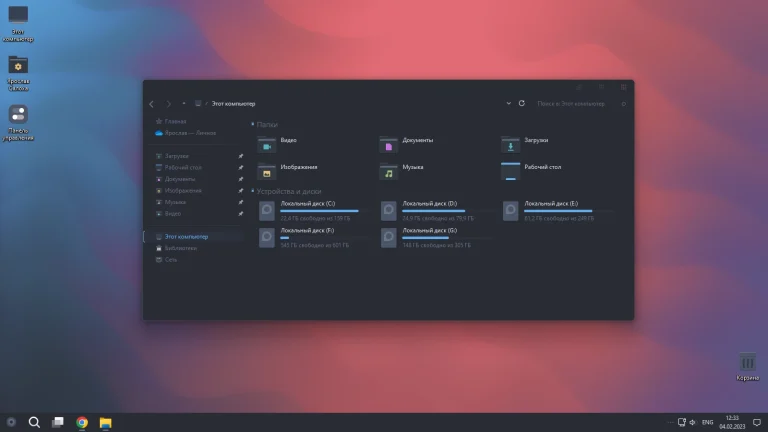
You may be able to customize the desktop wallpaper, system icons, mouse pointer, taskbar, Start Menu, File Explorer, window borders, widgets, fonts, visual style, and desktop dock.
For a clean result, use matching components from the same design package. Combining coordinated wallpapers, icons, cursors, and interface colors will usually produce a more balanced desktop than mixing several unrelated styles.
Compatibility
This theme is created for Windows 11, but compatibility can vary depending on your Windows build, edition, system architecture, theme files, and required customization tools.
Before installation, open Settings > System > About and check your Windows version and OS build. Compare those details with the compatibility information provided with the theme package.
Major Windows updates and cumulative updates can modify system interface files. A theme or customization tool that worked before an update may require a newer version afterward.
Never apply visual style files that were created for a different Windows build unless the theme developer clearly confirms compatibility.
- Create a system restore point before applying any custom theme.
- Read the installation instructions carefully before making changes.
- Use trusted customization tools only.
- Keep a backup of important files and personal data.
- Create a system restore point before starting customization.
- Check your current Windows 11 version and OS build.
- Confirm that the theme supports your Windows build.
- Install the required customization tools if needed.
- Follow the included theme installation guide carefully.
- Apply the wallpaper, icons, cursors, and visual style files.
- Restart Windows Explorer or restart your computer if instructed.
- Check our Windows custom theme installation guide for additional help.
- Theme support: Windows 11
- Download & Install windhawk.
- install & Open Windows 11 Settings Styler
- Go to the Advanced tab
- Copy the content below and paste it into the text box and click “Save”.
- For more details, visit this GitHub guide
- For more Windhawk Styler, visit Check My Theme Category
- Windows 11 21H2: Check the included compatibility notes
- Windows 11 22H2: Use only compatible theme files
- Windows 11 23H2: Recommended when listed as supported
- Windows 11 24H2: Recommended when listed as supported
- Windows 11 25H2: Test carefully after Windows updates
What’s Included in This?
- Windows Theme Files
- macOS Tahoe-Inspired Wallpapers
- Matching Icon Pack
- Cursor Files
- Visual Style Resources
- Additional Customization Files
- Installation Instructions
The exact contents may vary depending on the version of the theme package. Review all included files before installation and avoid applying components that are not compatible with your Windows build.
How to Remove or Restore Default Look
If you want to return to the original Windows appearance, open Windows Personalization settings and switch back to a default Windows theme. You can also remove custom wallpapers, icons, cursors, widgets, and other added visual elements.
- Open Windows Settings and go to Personalization.
- Select a default Windows theme to restore the standard appearance.
- Change the desktop background back to a Windows wallpaper.
- Restore the default system icons and mouse cursors.
- Disable or uninstall optional desktop customization tools.
- Follow the included uninstall or restore instructions.
- Restart Windows Explorer or restart your computer.
- Use your system restore point if you need to return to an earlier system state.
If deeper system customization changes were applied, follow the included uninstall or restore guide. Avoid manually deleting system files unless the instructions clearly explain how to restore them.
Final Thoughts
The macOS 26 Tahoe Theme for Windows 11 offers an attractive way to refresh your desktop with translucent surfaces, clean icons, soft wallpapers, and coordinated interface elements.
You can use only the basic visual resources or create a complete desktop transformation using compatible customization tools. For the best experience, keep the layout simple and avoid installing unnecessary background applications.
Always confirm compatibility before installation, create a restore point, and keep important files backed up. After a major Windows update, check whether the theme files and customization tools require newer versions.
Is this theme free to use?
Availability depends on the theme creator and the license included with the download. Some resources may be free for personal use, while others may have separate usage conditions. Read the included license information before using or redistributing any files.Is this an official macOS theme from Apple?
No. This is a third-party Windows customization project inspired by the appearance of macOS Tahoe. It is not developed, approved, or distributed by Apple or Microsoft.Will this theme slow down my PC?
Basic changes such as wallpapers, icons, and cursors usually have very little effect on performance. Animated wallpapers, desktop widgets, docks, transparency tools, and other background applications may use additional memory, graphics resources, or battery power.Can I use only the icons and wallpaper?
Yes. If the package allows separate installation, you can use only the wallpaper, icon pack, or cursor files without applying the complete visual style.Can I uninstall it later?
Yes. You can return to a default Windows theme through Personalization settings and remove the additional wallpapers, icons, cursors, widgets, or customization tools.Will the theme continue working after a Windows update?
Not always. Windows updates can change interface files and affect third-party customization tools. Check for updated theme files and compatible tool versions after major updates.Does this theme turn Windows 11 into macOS?
No. It changes the appearance of selected Windows elements but does not replace Windows or add macOS system features. Your computer will continue running Windows 11.