
Paper Theme for Windows 11: Clean Minimal Desktop Style
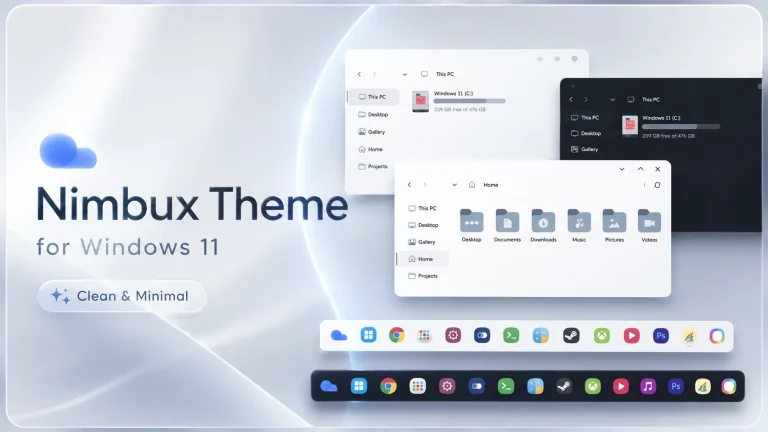
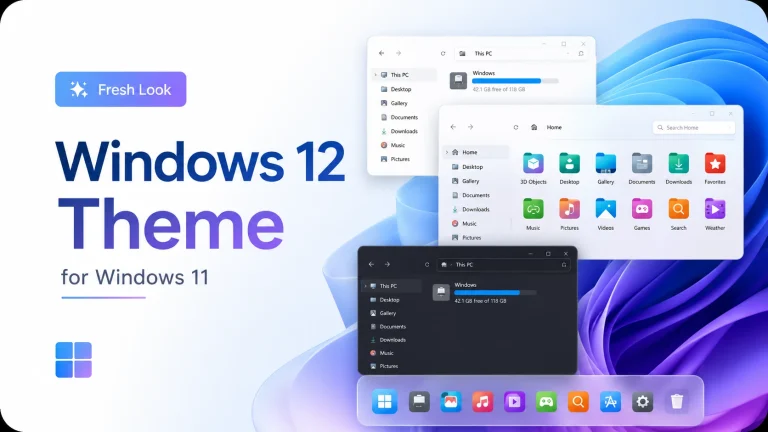
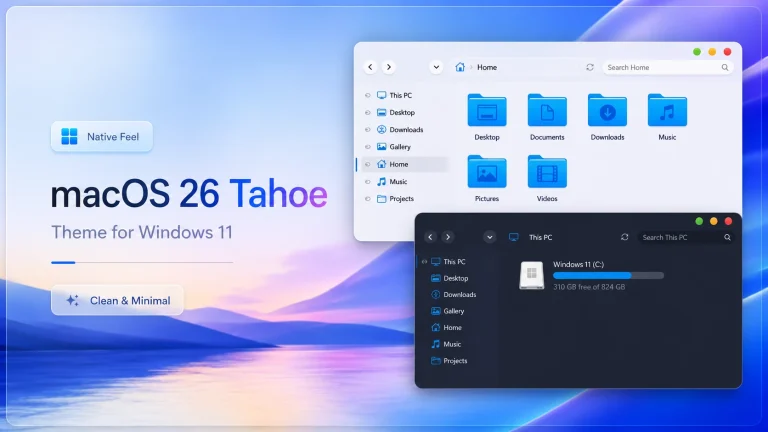
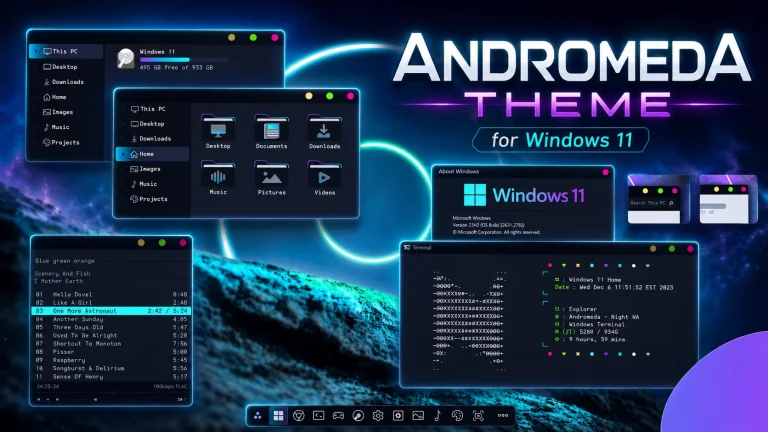
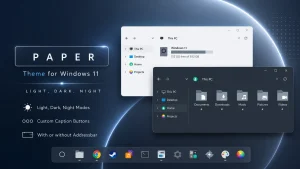
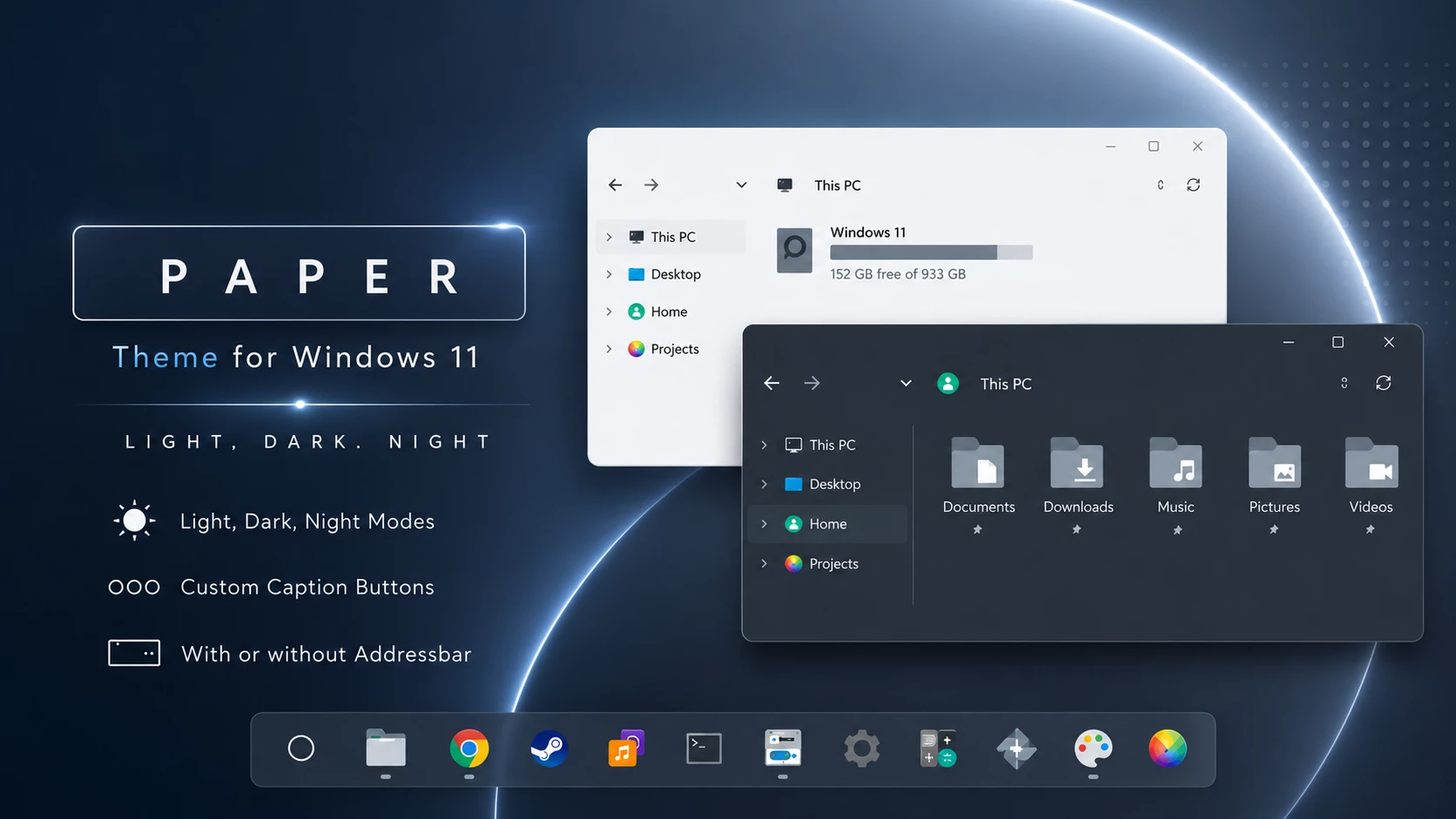
The Paper Theme for Windows 11 is a clean and elegant customization package designed for users who prefer a simple desktop appearance. Its paper-inspired visual style gives Windows a fresh, lightweight, and carefully balanced look.
The package includes light, dark, and night theme variations. You can choose a bright interface for daytime use, a balanced dark mode, or a deeper night style for low-light environments.
Matching wallpapers, system icons, and optional Windhawk resources are also included to help you create a more complete Windows desktop setup.
What Is the Paper Theme?
Paper Theme for Windows 11 is a third-party Windows visual style created by niivu. Its interface uses clean surfaces, minimal details, soft colors, and a distraction-free layout.
The theme includes versions with the standard File Explorer address bar and NA versions without the address bar. This allows users to choose between the familiar Explorer layout and a cleaner, simplified appearance.
This is an independent Windows customization project. It is not an official Microsoft theme.
- Clean paper-inspired visual design
- Light, dark, and night theme variations
- Versions with and without the File Explorer address bar
- Matching wallpapers and icon customization resources
Available Theme Styles
Paper Theme for Windows 11 package contains several visual variations so you can select a style that matches your desktop environment.
- Light: A bright and clean interface suitable for daytime use.
- Dark: A balanced dark appearance with reduced brightness.
- Night: A deeper dark design suitable for low-light environments.
- Standard: Includes the normal File Explorer address bar.
- NA: Provides a more minimal layout without the address bar.
What Does NA Mean?
NA refers to the theme variation without the standard File Explorer address bar. It creates a cleaner and more minimal Explorer appearance.
Paper Theme for Windows 11 versions are better for users who want to keep the familiar File Explorer navigation layout. The NA variations are suitable for users who prefer a simplified design and understand how to navigate folders without the normal address-bar appearance.
What Is Included in This?
- Light theme variations
- Dark theme variations
- Night theme variations
- Versions with the File Explorer address bar
- NA versions without the address bar
- 7tsp icon pack
- Windhawk icon pack
- Matching desktop wallpapers
- Paper Icons in ICO format
Paper Theme for Windows 11 Icons can be used to customize folders, desktop shortcuts, and other supported Windows icons.
The Windhawk icon resources can help create a more consistent appearance across supported Windows interface elements.
7tsp Icon Pack
The included 7tsp icon pack can replace selected Windows system icons with matching Paper-style icons.
This can make File Explorer, folders, drives, libraries, and other interface areas look more consistent with the visual theme.
Applying a 7tsp icon pack may modify Windows system resources. Create a restore point before using it and make sure the tool supports your current Windows build.
Windhawk Icon Pack
The Paper Theme also includes icon resources intended for compatible Windhawk mods. These files can be applied through an appropriate resource-redirection mod when supported.
Windhawk is optional if you only want to use the basic Windows visual style, wallpaper, or 7tsp icon pack.
Install only the Windhawk mods required for the included customization. Using unnecessary mods can make troubleshooting more difficult.
Compatibility
Paper Theme is primarily designed for Windows 11. Actual compatibility may depend on your Windows build, theme patcher version, and optional customization tools.
The theme may also work on Windows 10. However, File Explorer may retain a square appearance instead of matching the rounded Windows 11 design.
Windows 10 installation is more suitable for experienced users who understand the visual differences and possible compatibility limitations.
Before installing the theme, open Settings > System > About and check your Windows version and OS build.
- Create a system restore point before applying the theme.
- Back up important personal files and data.
- Check that the theme patcher supports your Windows build.
- Read the included installation instructions carefully.
- Use trusted and compatible customization tools only.
Installation Steps
- Download and extract the Paper Theme package.
- Create a Windows system restore point.
- Check your current Windows version and OS build.
- Install a compatible Windows theme patcher.
- Copy the theme files to the required Windows Themes folder.
- Open Windows Settings and go to Personalization.
- Select your preferred Paper theme variation.
- Apply one of the included wallpapers.
- Apply the 7tsp icon pack if desired.
- Install Windhawk only if you want to use the included Windhawk icons.
- Restart Windows Explorer or restart your computer if required.
For more Windows 11 themes and installation help, check the following pages:
- Windows 11: Supported with compatible theme files and tools
- Windows 10: Limited support for experienced users
- Windows 10 File Explorer: May retain square interface elements
- Download & Install windhawk.
- install & Open Windows 11 Settings Styler
- Go to the Advanced tab
- Copy the content below and paste it into the text box and click “Save”.
- For more details, visit this GitHub guide
- For more Windhawk Styler, visit Check My Theme Category
Download Paper Theme for Windows 11
Check the theme details and system compatibility before downloading and applying the package.
- Name: Paper Theme for Windows 11
- Category: Colored Theme
- File Size: 26.45 MB
- Platform: Windows 11 and Windows 10
- Developer: niivu
- Required: Compatible theme patcher and 7tsp tool
- Optional: OldNewExplorer and Windhawk
How to Restore the Default Windows Look
You can return to the original Windows appearance by selecting a default Microsoft theme from Windows Personalization settings.
- Open Windows Settings.
- Go to Personalization and select Themes.
- Choose a default Windows theme.
- Restore the original Windows wallpaper.
- Restore any icons changed through the 7tsp tool.
- Disable the Windhawk icon customization.
- Restore the default File Explorer appearance if needed.
- Restart Windows Explorer or restart your computer.
- Use your restore point if deeper changes need to be reversed.
If you used OldNewExplorer, Windhawk, or another customization utility, return its settings to default before uninstalling it.
Performance and System Usage
The basic Paper visual style, wallpapers, and static icons should have little effect on normal system performance.
Optional tools such as Windhawk may use a small amount of additional memory or processing resources. The actual impact depends on the number of active mods and your system configuration.
For a lightweight setup, use only the theme, wallpaper, and Paper ICO icons.
Important Safety Notes
Third-party Windows themes may stop working correctly after major Windows feature updates or cumulative updates.
Do not reapply an older visual style until you confirm that the theme patcher and theme files support your updated Windows build.
Always create a restore point before changing Windows visual styles or system icons. This provides a recovery option if the interface does not work as expected.
Final Thoughts
The Paper Theme for Windows 11 is a good choice for users who enjoy clean, simple, and visually balanced desktop designs.
Its light, dark, and night variations provide options for different environments, while the address-bar and NA versions allow you to choose between a familiar or more minimal File Explorer layout.
The included wallpapers, 7tsp icons, Windhawk resources, and Paper ICO files can help create a complete and consistent Windows desktop setup.
Before applying the theme, confirm compatibility, create a restore point, and install only the customization tools you need.
Is Paper Theme an official Microsoft theme?
No. Paper Theme is a third-party Windows customization package and is not developed or distributed by Microsoft.Which theme modes are included?
The package includes light, dark, and night theme variations.What does NA mean?
NA refers to a theme variation without the standard File Explorer address bar.Is the 7tsp icon pack required?
No. It is required only when you want to replace Windows system icons with the matching Paper icon design.Is Windhawk required?
No. Windhawk is optional and is needed only for the included Windhawk icon customization resources.Does Paper Theme work on Windows 10?
The theme may work on Windows 10, but File Explorer may keep a square appearance. Windows 10 installation is more suitable for experienced users.Will the theme slow down my computer?
The visual style and static resources should have little effect on performance. Optional background tools and multiple active mods may use additional system resources.Can I uninstall the theme later?
Yes. Select a default Windows theme, restore changed icons, disable optional Windhawk mods, and follow the included restoration instructions.Will Paper Theme work after a Windows update?
Compatibility may change after Windows updates. Check that your theme patcher, visual style, and optional tools support the updated Windows build.